For the cleanest Gears of War: E-Day desktop background, download a full-size landscape image that matches your monitor’s native resolution and aspect ratio. A 3840×2160 original is available for a standard 16:9 4K screen, alongside prepared versions for common resolutions such as 1920×1080, 2560×1440, 1366×768, 1920×1200, and 3440×1440. Do not save a gallery thumbnail and stretch it across the display; open the individual wallpaper page and use its original or resolution-specific download instead.
Choose a static image when you want the sharpest, simplest setup. Choose an MP4 live wallpaper only if you are willing to run compatible wallpaper software and accept the extra storage, memory, and power use. The available files come from third-party wallpaper galleries and individual artists, not a confirmed official downloadable press kit, so check the creator’s terms before redistributing or editing an image.
Best Gears of War: E-Day desktop background options
Wallpaper sites offer four practical groups. Select by display shape and desired motion rather than assuming that the file with the largest pixel count will automatically look best.
| Background type | Available size | Best fit | Important limitation |
|---|---|---|---|
| Static 4K landscape | 3840×2160 | 16:9 4K monitors and scaled 1440p or 1080p desktops | A crop may be needed on 16:10, ultrawide, or portrait displays |
| Resolution-specific static image | Options include 1920×1080, 2560×1440, 1920×1200, and 3440×1440 | Users who want a file already prepared for their screen | Some versions may be cropped rather than simple reductions |
| Ultrawide background | 2560×1080 or 3440×1440 options are represented in the available collections | 21:9 displays | GameWallpapers restricts its ultrawide wallpapers to registered users |
| Animated MP4 background | 1920×1080 or 3840×2160 | Windows desktops using compatible live-wallpaper software | Requires an application; file size and resource use are higher than for a still image |
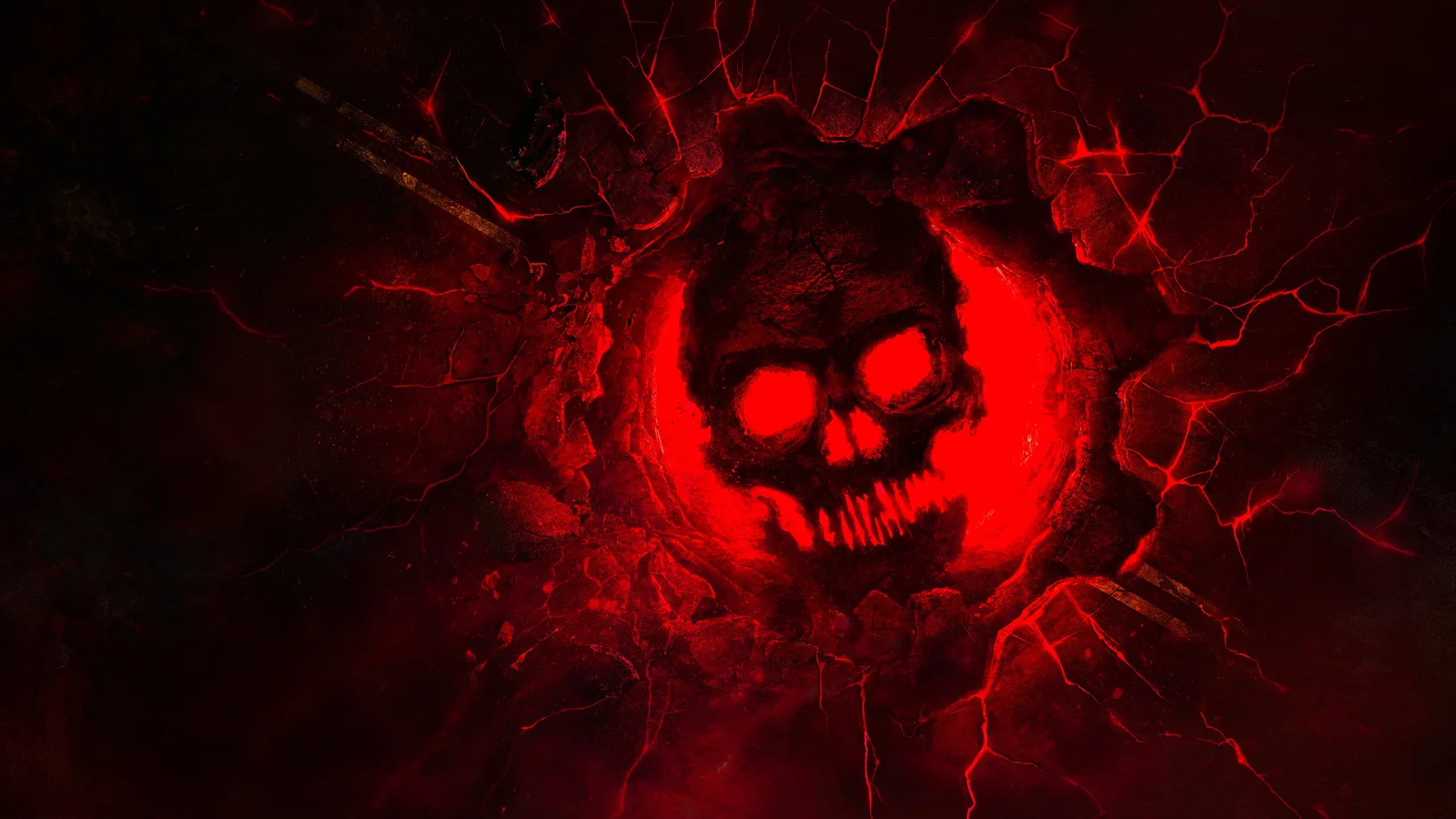
4K Emergence Omen artwork for a clean desktop background.
HDQwalls’ static “Emergence Begins” wallpaper is listed with an original resolution of 3840×2160 and an original file size of 4.04 MB. That makes it the most straightforward starting point for a conventional 16:9 display. The same gallery supplies separate downloads for many desktop formats, which is preferable to letting the operating system enlarge a small copy.
Other collections provide different compositions featuring Marcus Fenix, Dominic Santiago, the Crimson Omen, and darker Gears imagery. Confirm that a candidate is specifically labeled for E-Day before downloading it. General Gears galleries can mix E-Day with Gears 5, Gears of War 4, Gears Tactics, Reloaded, and older Marcus Fenix artwork. A familiar character or red skull motif does not by itself prove that an image belongs to E-Day.
Choose an image that works behind desktop icons
A good promotional image is not always a good desktop. Inspect the composition at full size and consider where your shortcuts, taskbar, widgets, and open windows normally sit.
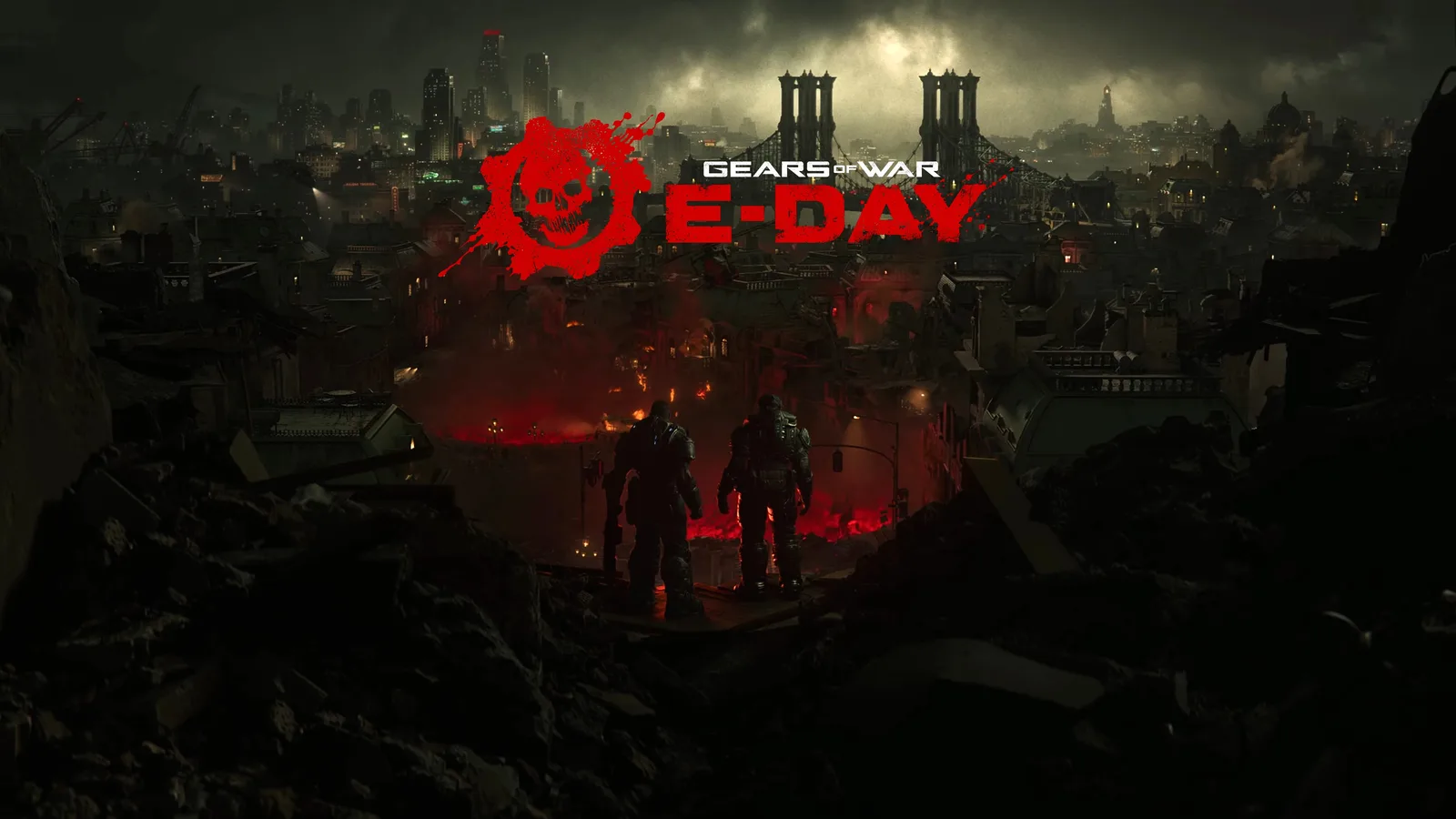
A landscape composition with Marcus and Dom separated from the surrounding background for desktop-icon readability.
Use these checks before setting the image:
- Prefer a subject placed away from your busiest icon column. If your shortcuts run down the left edge, a centered or right-weighted portrait usually remains easier to read.
- Look for quiet dark or blurred areas behind file names. Detailed armor, smoke, sparks, and bright title lettering can make white desktop labels difficult to distinguish.
- Avoid artwork with important faces or logos pressed against an edge. Windows may crop that edge when the background mode is set to Fill.
- Open the actual downloaded file and verify its pixel dimensions. Gallery thumbnails can look acceptable in a browser but become soft or blocky when expanded to a large monitor.
- Check whether the image is an E-Day composition or older franchise art. These wallpaper galleries include both, sometimes on the same collection page.
- Keep the original file untouched. If you later make a personal crop, work on a copy so you can return to the full composition or prepare another monitor size.
For a minimal desktop, select artwork with one focal point and ample negative space. For a more cinematic setup, use a wider Marcus-and-Dom composition, but preview it with your real icon layout before committing. Text already embedded in the artwork can compete with desktop labels, especially when both occupy the upper-left or lower-right corner.
Match the wallpaper to your monitor resolution
First check the resolution currently used by the operating system. On Windows, open Settings, choose System, then Display, and note the value marked as the recommended display resolution. The physical panel and the configured desktop resolution can differ, so use the recommended value rather than estimating from the monitor’s advertised size.
The static wallpaper collection includes the following useful desktop groups:
- Standard 16:9 choices include 1280×720, 1366×768, 1600×900, 1920×1080, 2048×1152, 2560×1440, and 3840×2160.
- 16:10 choices include 1280×800, 1680×1050, 1920×1200, 2560×1600, and 2880×1800.
- Traditional 4:3 or 5:4 choices include 1024×768, 1152×864, 1400×1050, 1280×1024, and 1600×1200.
- Ultrawide choices listed by the wallpaper sites include 2560×1080 and 3440×1440. The gallery also lists 2560×1024, which is even wider and should not be treated as interchangeable with a normal 16:9 image.
When an exact match exists, start with that version. If it does not, choose an image with the same aspect ratio and at least as many pixels as the screen. A 3840×2160 image scales cleanly to 2560×1440 or 1920×1080 because all three are 16:9. It does not naturally match a 3440×1440 ultrawide screen: Fill must remove content from the top and bottom, while Fit preserves the full image but introduces unused space at the sides.
For a dual-monitor desktop, do not assume one 3840×2160 file is large enough merely because “4K” sounds larger. Two 1920×1080 monitors placed side by side create a 3840×1080 canvas. The dimensions fit within a 4K file, but the combined desktop is much wider, so Windows must crop heavily or display the same picture separately on each screen. A purpose-built panoramic crop will preserve the subject more reliably.
Set a static wallpaper on Windows
After downloading the full-resolution file, use this short setup sequence:
- Open the image locally and confirm that it is the expected composition rather than a thumbnail, advertisement, icon, or unrelated Gears title.
- Right-click the desktop and open Personalize, then select Background.
- Choose Picture and browse to the downloaded file.
- Start with Fill for a normal edge-to-edge desktop. Use Fit if Fill removes an important character, title, or emblem.
- Try Center only when the image already matches the screen or when you intentionally want a border. Stretch can distort characters when the source and monitor have different aspect ratios.
- Inspect every edge of the desktop. Check the taskbar, shortcut labels, and any area where the composition may have been cropped.
- If you use multiple displays, decide whether to span one image or assign a separate correctly sized image to each monitor.
Windows may display a scaled preview immediately, but that preview does not confirm the file’s original dimensions. If the background looks blurry, return to the downloaded file’s properties and verify its width and height. Downloading a larger original is normally better than repeatedly sharpening or enlarging a small thumbnail.
Static or animated E-Day wallpaper
A static JPEG or PNG is the safer default. It opens without special wallpaper software, consumes little additional power, and remains sharp whenever the source resolution is sufficient. Animated backgrounds add movement but introduce more variables: video resolution, loop quality, player compatibility, application settings, and resource use.
DeviantArt artist favorisxp’s animated E-Day background is a 10-second MP4 built around a close portrait of Marcus Fenix that shifts from red toward black and white, with the Gears of War and E-Day title treatment. The artist lists two versions:
| Animated version | Resolution | Listed file size |
|---|---|---|
| Full HD | 1920×1080 | 4.58 MB |
| 4K | 3840×2160 | 14.50 MB |
favorisxp describes the MP4 as usable with Lively Wallpaper, Wallpaper Engine, and similar software, and specifically suggests Lively Wallpaper for a Windows 10 PC. This is the artist’s compatibility guidance, not a guarantee for every system configuration. The work is also presented under a Creative Commons Attribution-NonCommercial-NoDerivatives 3.0 license, so review those restrictions before sharing, modifying, or republishing it.
MyLiveWallpapers offers a 3840×2160 desktop package at approximately 33.3 MB and states that it can also serve as a screensaver. Its larger size does not establish that it has better visual quality than the smaller 4K MP4; encoding, frame rate, motion, and image detail also affect the result.
Use 1920×1080 motion wallpaper on a Full HD screen unless you have a specific reason to download the larger file. Use 3840×2160 on a 4K panel when the application can play it smoothly. If animation causes stutter, excessive fan noise, or unnecessary battery drain, switch to a static frame or configure the wallpaper application to pause while games and full-screen applications are running.
An Xbox Series X|S dynamic background is a separate console feature. A community post reports an E-Day dynamic background for those consoles, but that does not make it a downloadable Windows desktop file. Do not expect a console theme to appear in a PC wallpaper folder or work in a Windows live-wallpaper application.
Avoid low-quality or misleading downloads
Wallpaper pages often display several image types on the same screen. The large artwork, a preview thumbnail, a social-sharing icon, an application badge, and an advertisement may all be clickable. Confirm the destination before saving anything.
A useful download should pass four checks:
- Correct subject: the image should be identifiable as Gears of War: E-Day, not simply another Gears release or generic mechanical artwork.
- Correct dimensions: the file should meet or exceed the desktop resolution and should have the appropriate aspect ratio.
- Correct format: use a normal still-image format for a static desktop and an MP4 or the format required by your chosen application for a live wallpaper.
- Clear usage terms: treat wallpapers from galleries and artists as third-party works unless the page clearly establishes otherwise. Public availability does not automatically grant permission to redistribute the file.
No official announcement confirms an official public press-kit download or a blanket media license for E-Day images. It is therefore safer to keep a downloaded wallpaper for personal desktop use and consult the relevant creator or host terms before editing, uploading, packaging, or using it commercially.
Fix cropping, blur, black bars, or animation problems
If the background is blurry, confirm that you downloaded the original or an exact resolution version rather than the thumbnail shown in a gallery grid. A 1366×768 copy can fill a laptop screen, but it will be visibly enlarged on a 2560×1440 or 3840×2160 monitor.
If faces or title text are cut off, change the Windows fit mode from Fill to Fit. Black or color bars can then appear because the image and display use different aspect ratios. To remove the bars without distortion, select a wallpaper prepared for the monitor’s shape or make a personal crop from a larger original.
If an ultrawide image looks stretched, make sure Windows is not forcing a 16:9 file across the full 21:9 desktop. Use an actual 2560×1080 or 3440×1440 composition when available. Stretching changes proportions; cropping preserves proportions but removes part of the frame.
If a live wallpaper does not play, verify that you downloaded the video package rather than its preview picture. Open the file in a normal media player to confirm that it is intact, then import it using the workflow required by the wallpaper application. If playback works in a media player but not on the desktop, check the application’s format support and per-display settings. When troubleshooting is not worth the additional software or system load, use a full-resolution static image from the same composition instead.