For the October 7, 2026 launch build, start by installing the available game update, completely closing any leftover E-Day process, and restarting your PC. Then identify whether the failure happens before the menu, during loading, or after you enter a match. The October 5 patch contains stability, performance, hardware compatibility, and authentication improvements, but it does not provide a universal fix for every PC crash or black screen.
If the game already reaches its menus, you have a different problem from a failed launch. Keep your campaign saves intact and change one reversible setting at a time. A long list of unrelated tweaks makes it harder to find which change actually helped and can leave a working installation in a worse state.
Identify the point where the game stops
Write down the last thing that worked. An error immediately after pressing Play, a black screen after a campaign cinematic, and a disconnect from a running Horde Siege mission should not be treated as the same symptom. Include the exact error wording if one appears; a description such as “not working” is too broad to select a useful next step.
| Symptom | First useful check | What it does not establish |
|---|---|---|
| Play starts nothing visible | Check whether an old game process is still running | It does not prove the installation is damaged |
| Driver warning or startup crash | Check the installed driver and pending updates | It does not establish a specific faulty driver version |
| Menu loads but a chapter stays black | Record the chapter and transition | It does not prove a general startup failure |
| Match starts, then closes | Record mode, elapsed session, and crash message | It does not prove a server outage |
| Waiting for players persists | Check the game update and service status | It does not prove a graphics problem |
Do this before reinstalling anything. A precise failure point allows you to repeat the same test after each change instead of judging success from a different mode or a shorter session.
Install the launch fixes before following older advice
The October 5 update is the applicable patch baseline for this guide. It improves several areas of stability and hardware compatibility and addresses some Versus Social matches remaining on the Waiting for players screen. It also improves Xbox authentication when the system clock differs significantly from the correct time.
Check your launcher for an available E-Day update and let the download and installation finish. Restart the launcher afterward if it still shows work pending. Do not assume that owning the Premium Edition or having played the beta means your current installation includes the launch changes.
The September 30 launch changes also fixed a PC issue that reset graphics settings between launches and a mouse and keyboard input delay issue. If an older tutorial treats those as unavoidable behavior, apply the update before changing configuration files. A patch being available is different from confirming that it is installed on your PC.
Close a leftover process and restart cleanly
E-Day's launch known issues include the game process continuing to run after closing. A second launch attempt can therefore be confusing: the window is gone, but the previous process may still exist. Use Task Manager to check for the game process after you close E-Day normally.
- Close the game and wait for its window to disappear.
- Check Task Manager for an E-Day process that remains.
- If the game has already closed and its process is still present, end that leftover game process.
- Restart the launcher and try one fresh launch.
- Restart Windows if the same behavior continues.
Only end the identified game process. There is no need to stop random Windows services. If the launcher is downloading an update or performing verification, let that operation complete before restarting it. Record whether this changes the symptom from no window to an error message, even if the game still does not reach the menu.
Verify the installation through your launcher
File verification is a low-risk check when the game fails before loading normally. Use the verification or repair feature offered for E-Day by the launcher where you installed it. Steam and the Xbox PC app have different interfaces, so follow the labels visible in your installed client rather than an unrelated video's example game.
Allow the scan to finish and any replacement files to download before testing. A completed scan checks installation files; it does not establish that a campaign save is healthy, that a server is available, or that every gameplay bug has been removed.
If verification finds a problem and downloads files, repeat the original failing launch. If it reports a clean installation and the failure is identical, record that result and move on. Repeating a successful verification several times without any new information is unlikely to clarify a chapter-specific or online-service problem.
Do not manually delete save folders as part of this step. Launcher verification and save removal are different actions, with very different consequences for campaign progress.
Check graphics drivers and Windows updates
If the game displays a graphics-driver warning, record its exact text and your installed driver version. Check for a driver compatible with your specific GPU and Windows version using the GPU manufacturer's official software or download service. Community troubleshooting videos contain driver-update suggestions, but it does not establish a single driver version that fixes every E-Day PC.
Complete pending Windows updates and restart when requested. Testing while an installation or required restart is unfinished makes the result less useful. If you recently changed drivers, include both the old and new versions in your notes instead of simply writing “latest driver.”
On a PC with multiple GPUs, check that the game is assigned to the intended dedicated GPU. Treat this as a configuration check, not proof that integrated graphics caused the failure. Do not disable devices in Device Manager just to force an outcome. A laptop can depend on its integrated GPU for parts of the display path.
Test optional overlays and custom tuning
Community troubleshooting videos suggest closing optional overlays and monitoring applications. This is a reversible compatibility test, not a confirmed E-Day-specific cure. Close optional recording or overlay software for one launch attempt, and keep a note of exactly what you stopped.
If the game works afterward, restore those applications individually to find whether one of them is associated with the failure. If nothing changes, restore your normal setup before moving to the next check. Do not interpret one successful short launch as proof that a long Horde mission is now stable.
If you use a GPU overclock or other custom tuning, test the manufacturer's default settings. Avoid copying another player's voltages, clock speeds, or power limits. Their hardware and cooling are different, and a performance claim in a tutorial is not evidence that the same change will help your machine.
These checks should stay separate from security settings. Disabling antivirus protection, modifying the registry, or stopping broad groups of services is not required for this troubleshooting path.
Handle shader preparation without confusing it with a hang
E-Day supports Advanced Shader Delivery on PC. At launch, the announced support is for AMD hardware, with NVIDIA support planned later in October. The feature can benefit supported games through the Xbox PC app; the launch announcement also says an installed Xbox PC app on Windows 11 may allow required shaders to be preinstalled when playing outside that app.
This is a feature announcement, not a guaranteed repair for every black screen. Do not treat planned NVIDIA support as already available in the October 7 baseline. If your launcher or game displays shader preparation, let the visible operation complete before judging the next launch.
Avoid repeatedly clearing shader caches simply because a video includes that step. Removing a cache can cause preparation to run again. If the symptom is a repeatable black screen after one specific campaign cinematic, record that transition instead of assuming all loading delays have the same shader cause.
Use lighter settings only if you can reach the menu
If the game opens but becomes unstable during gameplay, try a lighter graphics preset or a conservative frame cap as a diagnostic comparison. Keep resolution, upscaling, and the tested scene recorded so that you can compare like with like.
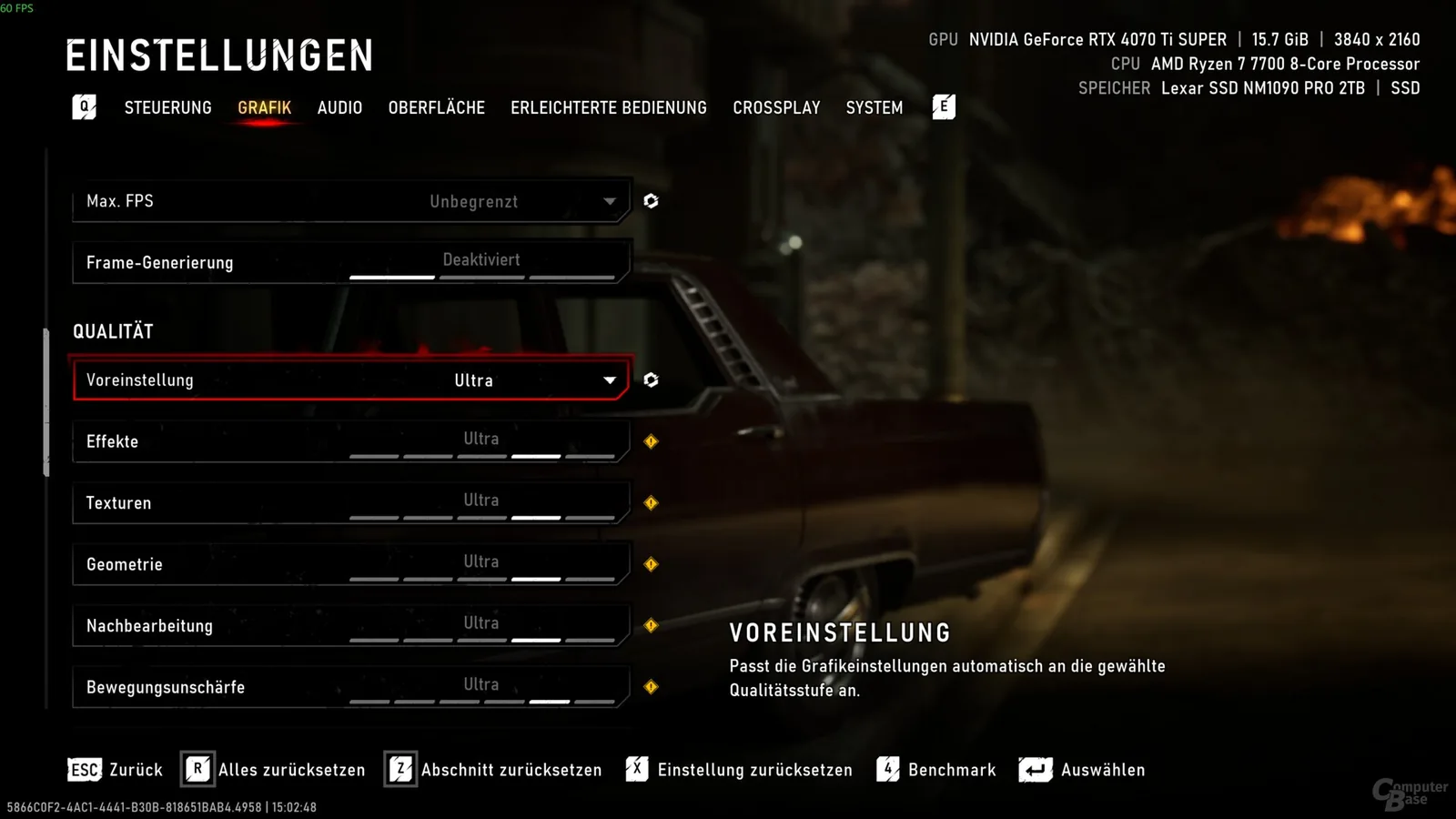
The German graphics menu shows where the preset, Max FPS and frame generation controls appear. Ultra is the selected example, not a recommendation for every PC.
A smoother scene after lowering settings suggests that the original configuration was too demanding for that test. It does not prove the root cause of a crash. Similarly, a graphics reset message after an unexpected shutdown describes the aftermath; it does not identify exactly which setting caused it.
Use the built-in controls rather than editing an undocumented configuration path. Once a stable configuration is found, raise one setting at a time. Keep gameplay responsiveness and the original failure point as your success criteria, rather than chasing a particular frame-rate number from someone else's PC.
Separate campaign blockage from online problems
The launch known issues advise reloading a checkpoint when a long uninterrupted campaign session becomes blocked at an encounter or objective. That is useful when gameplay is running and the next step fails to advance. It is different from fixing a game that cannot open at all.
Act 2 Chapter 2 has both objective-update fixes and separate early-access reports of black-screen loading. The October 5 Allfather's Plaza objective fix should not be presented as a confirmed infinite-loading fix. If your failure is at that transition, keep the act and chapter in your report.
For online problems, check service availability and the exact sign-in or matchmaking message. If the clock on your PC is substantially wrong, correct it before another Xbox authentication attempt. Do not change your time zone repeatedly or use network tweaks to bypass an error without understanding its wording.
Send a report that can distinguish the failure
When the low-risk checks do not change the result, report the unresolved failure through Gears support. Include your platform and launcher, CPU, GPU, RAM, Windows version, driver version, installed update status, and the exact point where E-Day stops.
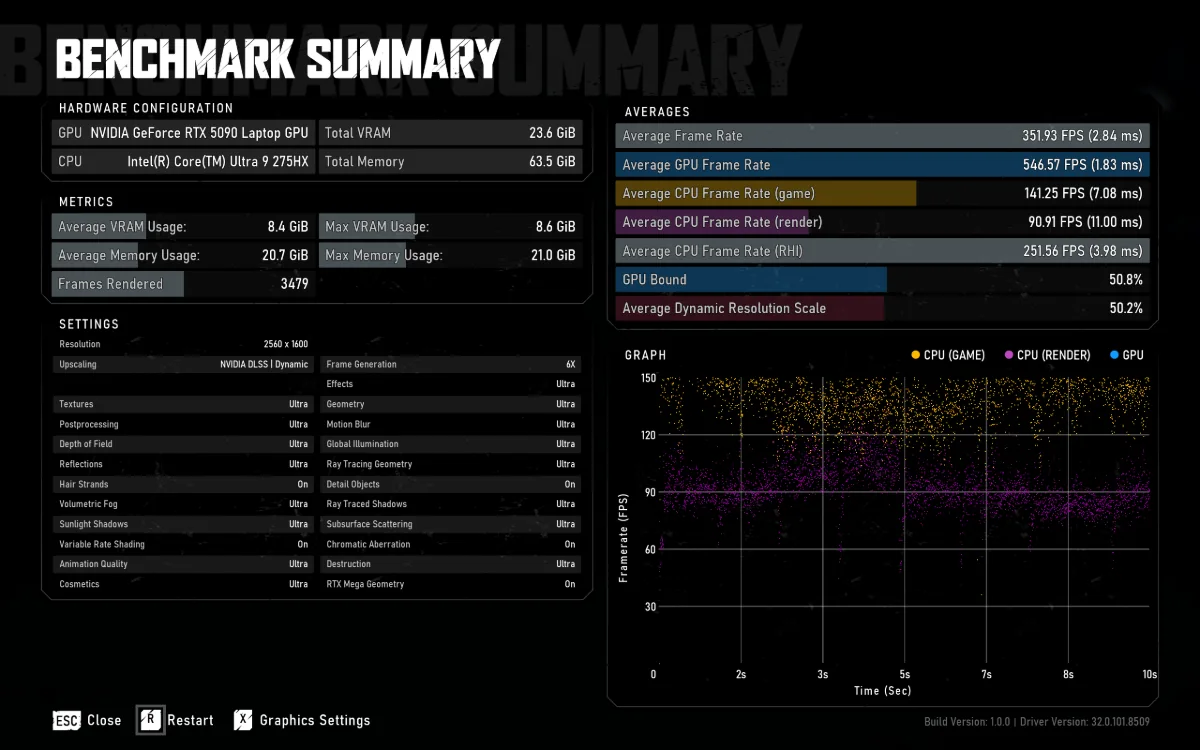
A benchmark summary can document hardware, graphics settings and build information when the game reaches this screen. This example uses dynamic DLSS and 6X frame generation; its frame rate is not a troubleshooting target.
Add whether Task Manager showed a leftover game process, whether verification replaced files, and whether an overlay-free launch changed anything. For a gameplay crash, state the mode and what was happening immediately beforehand. Keep account credentials, product keys, and unrelated device identifiers out of screenshots.
Stop after a controlled test has answered its question. Reinstalling repeatedly, deleting campaign progress, and stacking unverified launch options does not turn an unresolved problem into a verified fix. The useful endpoint is either a reproducibly working launch or a clear report that preserves the information needed to investigate the remaining failure.