
Gears of War E-Day crossplay lets Xbox and PC players play together. The game is available on Xbox Series X|S and Windows PC through Steam and the Xbox or Microsoft Store route. For a mixed-platform group, the important setup is a shared squad invitation and the correct account identity, followed by a check that everyone has entered the same lobby.
Crossplay does not by itself promise cross-platform purchases, a shared Premium upgrade, or automatic inheritance of another player's campaign progress. Those are separate questions. If you are trying to join a friend, solve the invitation and session problem first; do not buy a second upgrade or restart a campaign solely because the two players use different storefronts.
Match the mode to the size of your group
E-Day's online campaign supports up to four players. Horde Siege places twelve players in a shared battlefield as three four-person squads. Versus is 4v4. A larger total player count in a mode does not mean your own squad can contain that many friends.
| Mode | Relevant group structure | What to arrange before playing |
|---|---|---|
| Campaign | Up to four online players | Choose the host and agree on the campaign starting point |
| Horde Siege | Three four-person squads on one battlefield | Build your own squad and agree on mission and difficulty |
| Versus | Four players per team | Form the intended squad before matchmaking |
| Xbox local campaign | Two-player split screen | Confirm the local profiles and online session setup if adding others |
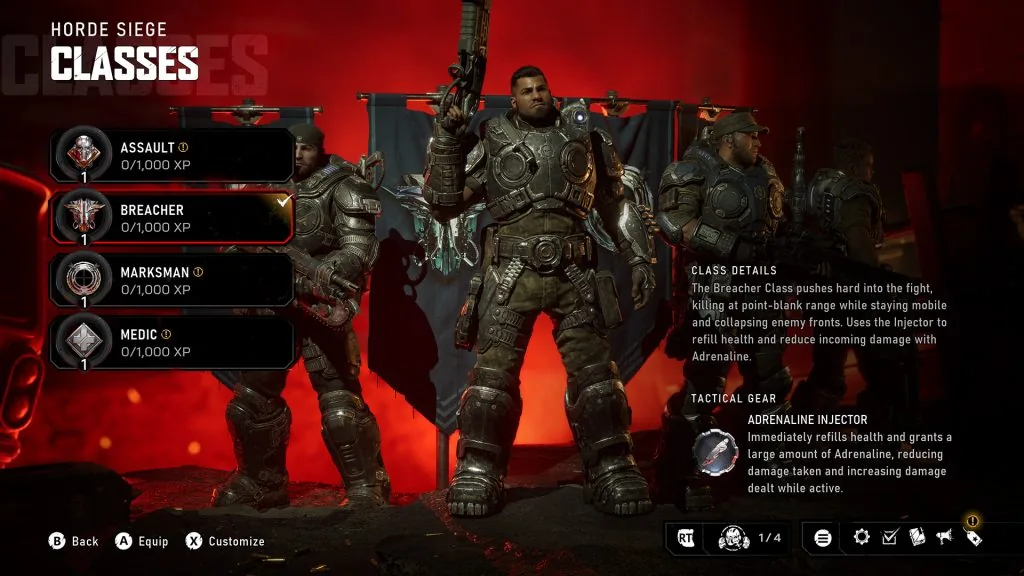
The Horde Siege preview displays the four-player squad counter. It does not identify the platforms used by other players.
For a group of four friends across Xbox and Steam, the main question is whether each person appears in the same squad before the host starts. For more than four friends, do not assume that Horde Siege's twelve-player total provides a confirmed method to place all of you into the same battlefield together. The mode's three-squad structure and your invitation capacity are different things.
Campaign setup also involves a story decision. Choose whether everyone is starting fresh or some players are joining an existing save. Crossplay allows the session; it does not decide which chapters each person has completed or what progress a late joiner should receive.
Connect the account used for cross-platform invitations
The Steam version describes account linking as the route for roaming saves, connecting with friends, and sending cross-platform invitations. Inspect the account connection used for those features before building a mixed-platform squad. On Steam, inspect the social pane for the account-linking option and check the gamertag shown after completing the sign-in flow. Use the Xbox account you intend to use with your friends.
The beta documented the entry as Link Account in the upper-left area of the social pane. Use that as a place to look, while following the labels actually shown in the launch version. Do not assume that a menu location remembered from an earlier client is identical on every current platform.
Follow the current account requirements shown by the game and the selected online flow. Do not assume that signing into Steam completes the separate Xbox account connection used for cross-platform invitations and roaming saves. Complete the connection the game asks for, then confirm the linked identity before inviting a friend.
Before completing a sign-in, inspect the account name. A browser can retain a previous session, especially on a shared computer. Linking an account successfully is not the same as linking the correct one. If the displayed identity is wrong, resolve it before sending invitations or accepting a friend's request.
Do not confuse your Steam display name with your linked Xbox gamertag. Both may identify the same person in different systems, but the friend on Xbox needs the identity that the cross-platform invitation flow uses. Agree on that name in advance so that you are not searching for a nickname that exists only in another storefront's friends list.
Send one invitation and confirm the shared lobby
- Make sure every player is launching the full E-Day game with current updates installed.
- Choose one person to create the squad or host the campaign.
- Have the Steam player inspect the linked Xbox account used for cross-platform invitations.
- Open the game's social pane and find the intended friend using the identity shown for that account.
- Send a squad invitation through the in-game cross-platform flow.
- Have the receiving player accept while signed into the expected profile.
- Confirm that everyone appears together in the same squad or campaign lobby.
- Review the selected mode and, for Campaign, the starting chapter before beginning.
If the invitation goes to the wrong identity, sending it repeatedly does not fix the account mismatch. Check the names on both sides. If the recipient sees the invite but cannot join, record the error or blocked state rather than describing the situation only as crossplay not working.
A successful lobby join is the first useful milestone. It proves that the group formation step worked for those players in that session. It does not establish that matchmaking, every later checkpoint, or every reward will behave perfectly. Continue with a short initial session so that everyone can confirm the setup before committing to a long mission.
Inspect crossplay and squad privacy together
If an invitation cannot join the intended group, inspect the settings available in the social and multiplayer menus. Look for crossplay and squad privacy controls where your version exposes them. A restriction on joining the squad can matter even when the players are on compatible platforms.
Do not assume crossplay is on by default solely because it was available in an older Gears game. Confirm the current value displayed on each device. Likewise, do not change a privacy setting without understanding whether it controls invitations, open joining, or matchmaking. The point is to remove a specific restriction affecting your group, not to open every setting indiscriminately.
If you see a crossplay option, read its description before changing it. Some multiplayer options can apply to particular matchmaking contexts rather than every mode. Verify the result by attempting the same group join afterward instead of treating a toggle change as proof that the underlying problem is solved.
When the two platforms show different menus, record the options visible on each. A missing identical toggle does not automatically mean one version cannot crossplay. Your actual test is whether the intended account can join the intended squad through the supported invitation flow.
Crossplay, saves, and purchases answer different questions
Crossplay is the ability to play together across supported platforms. Cross-save or cross-progression concerns whether your own records follow your account between versions. Cross-buy concerns whether buying a product on one storefront gives access to another storefront's version. Similar names do not make them the same entitlement.
| Question | What you need to establish |
|---|---|
| Can my Xbox friend join my PC session | Crossplay support and a working invitation |
| Will my own progress appear after changing versions | Linked-account roaming saves and the records loaded by the destination version |
| Does an Xbox purchase grant a Steam copy | The storefront's purchase entitlement |
| Does an Xbox Premium upgrade apply to a Steam base game | The upgrade's exact platform and product compatibility |
| Will joining a host grant earlier campaign records | The campaign progress rules for join-in-progress players |
Roaming saves concern your own linked-account progress. When switching installations, check the account identity and the campaign records that load before starting new progress. This is separate from joining another person's campaign and does not grant their earlier completion to you.
An account link can enable a social feature without granting a second game license. Do not infer a Steam entitlement from the fact that both versions can communicate through an Xbox profile. If a purchase decision depends on an upgrade working across stores, verify the product's compatibility before paying.
The same care applies to premium cosmetics. Seeing a shared account name does not establish when a particular pack is claimed, whether it requires launching a specific version, or whether early access transfers. Those are item and entitlement details, not consequences of crossplay alone.
Campaign hosting needs a progress plan
Before a mixed-platform campaign, agree on who hosts and where the group starts. If everyone wants a full first playthrough, starting together is easier to track than joining someone who has already completed a large part of the campaign. Crossplay does not remove the difference between participation and the host's existing records.
The October 5 update addressed a problem where joining an existing campaign could grant War Journal progress and Forge rewards earned before the player joined. It also addressed missing expected Forge Discovery progress for some join-in-progress players. These changes should not be described as a promise that every joiner now receives all of the host's earlier completion.
After a session, each player should check their own campaign records if completion matters. Compare the chapter and activities you actually played rather than relying only on the host's journal. If a record is missing, note the session point, host, and affected category before replaying anything.
Avoid making account-linking changes in the middle of an unresolved progress issue just to experiment. First determine whether the players joined successfully and participated in the same content. A working cross-platform connection and a campaign-record problem can coexist; fixing one does not automatically explain the other.
Split screen has a platform boundary
Xbox supports two-player local split screen for the campaign. PC does not support local split screen. This is independent of online crossplay: a Steam player can participate in an online group without the PC gaining a couch-cooperative mode for a second local player.
If two people share one PC, online cooperative support is not sufficient to place them both in the game locally. Plan the devices needed for the actual group. Buying another controller does not establish a supported local mode when the PC version lacks split screen.
For an Xbox local pair joining others online, confirm the active profiles and lobby membership before starting. The October 5 patch addressed the Bilefrog-Kalona issue in which a split-screen player could be signed out after suspending and resuming. Apply the update, and if a resumed session behaves unexpectedly, verify the profiles rather than assuming the entire crossplay connection is unsupported.
Separate invitation failures from matchmaking failures
If everyone appears in the lobby but the match remains waiting for players, the invitation already completed. That is a matchmaking symptom. The October 5 patch addressed some Versus Social matches remaining on the Waiting for players screen, so update before treating an older report as the current state of every session.
If you cannot sign in or link the expected profile, the problem is earlier in the chain. Check account identity and the system time. The October 5 patch improved Xbox authentication handling when the system clock differs significantly from the correct time. An incorrect clock is an account-authentication variable, not evidence that Xbox and PC cannot play together.
For connection testing, use a wired connection where practical and compare the same joining action. Record whether the failure happens when linking, inviting, accepting, entering the lobby, or matchmaking. That stage-specific description is more useful than changing graphics settings or reinstalling the game without a connection-related reason.
Start with a short mixed-platform session
For a new group, first confirm the accounts and lobby, then play a manageable session together. In Campaign, agree on a stopping point and check records afterward. In Horde Siege, choose a mission that everyone has time to finish rather than testing the setup during a long commitment.
As of October 7, Ranked Versus is scheduled to open October 13. A missing Ranked entry before that date is not proof of a crossplay problem. Test the group in a currently available mode and keep the scheduled opening separate from invitation troubleshooting.
The complete crossplay setup is a correctly linked identity where needed, a successful in-game invitation, and the intended players together in one lobby. Purchase rights and progress should be verified on their own terms. Keeping those checks separate lets you play with Xbox and PC friends without spending money or replaying content to solve the wrong problem.