Gears of War: E-Day requires a graphics card with dedicated hardware ray-tracing support and installation on an SSD. The launch specification chart lists 12 GB of system RAM and 6 GB of VRAM at the minimum tier, rising to 16 GB of RAM for the recommended and Ultra tiers. Its performance targets include upscaling: the listed 1080p, 1440p, and 4K results should not be read as guaranteed native-resolution measurements.
Start by checking the hardware support requirement, available SSD space, and your exact CPU and GPU models. Only then compare the graphics tier you want to use. A PC can satisfy the support requirement while still falling short of your preferred resolution or frame rate. Conversely, an older discussion about beta performance does not establish how the patched launch game will perform on the same machine.
The minimum, recommended, and Ultra targets
The launch chart groups hardware around a preset, output resolution, and frame-rate target. Read each column as a complete combination. The GPU row alone does not tell you what the game will do if you choose a higher preset, use a weaker CPU, or turn off the upscaling included in the performance target.
| Requirement | Minimum | Recommended | Ultra |
|---|---|---|---|
| Operating system | Windows 10 64-bit 22H 19045.7291 | Windows 11 64-bit 25H2 or newer | No separate OS value specified here |
| Graphics preset | Medium | High | Ultra |
| Output and performance target | 1080p, 60 fps with upscaling | 1440p, 60+ fps with upscaling | 4K, 60+ fps with upscaling |
| NVIDIA GPU examples | GeForce RTX 5050 or RTX 2060 | GeForce RTX 5060 or RTX 3060 Ti | GeForce RTX 5070 Ti |
| AMD GPU examples | Radeon RX 6600 or RX 9060 | Radeon RX 6700 XT or RX 9060 XT | Radeon RX 7900 XT |
| AMD CPU | Ryzen 5 2600X | Ryzen 5 5600 | Ryzen 7 7800X3D |
| Intel CPU | Core i7-6850K or i5-10400 | Core i5-11600K | Core i7-14700K |
| Dedicated VRAM | 6 GB | 8 GB | 12 GB |
| System RAM | 12 GB | 16 GB | 16 GB |
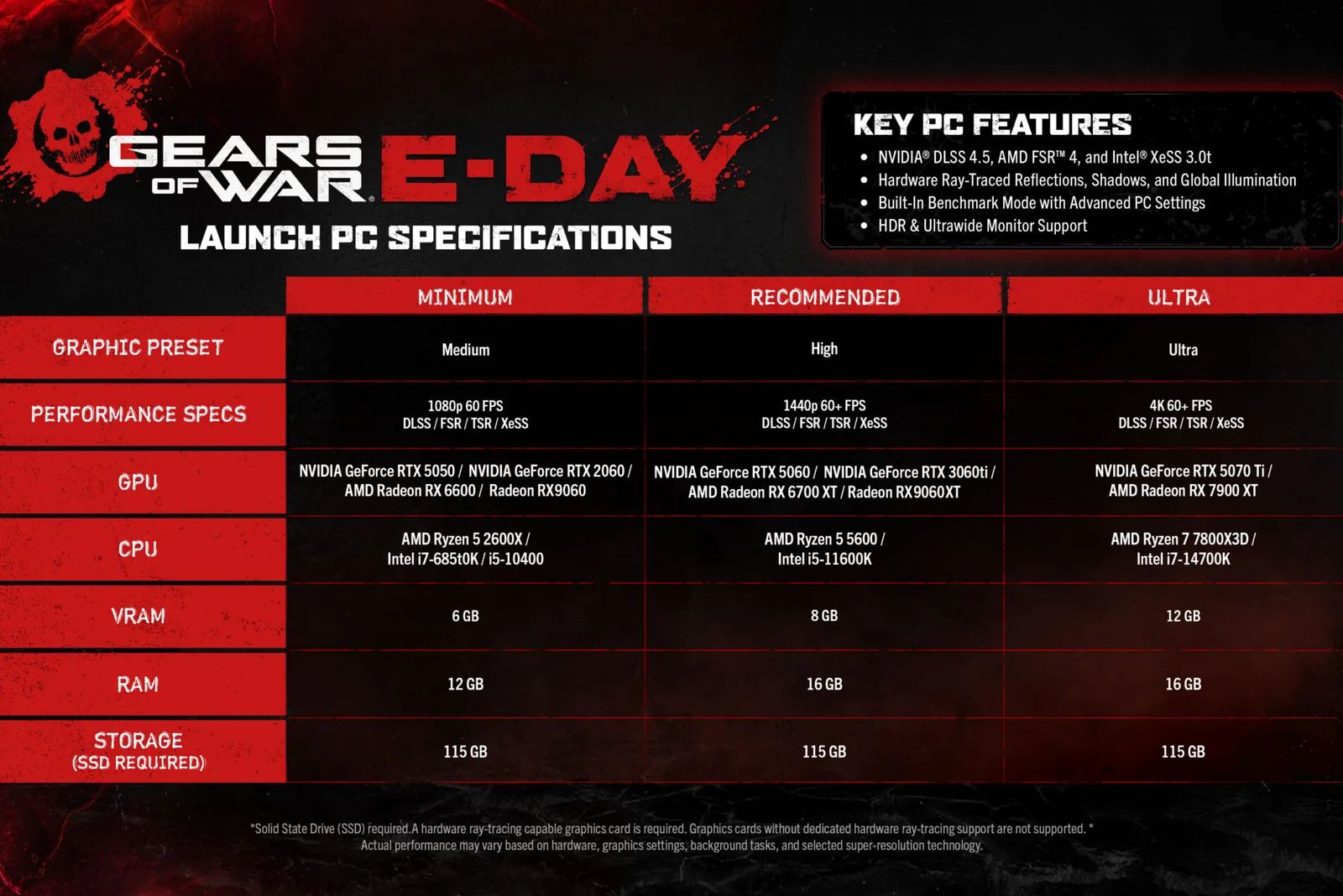
The official launch chart pairs its minimum, recommended and Ultra hardware tiers with presets and upscaled performance targets.
The PC requirements also list DirectX 12, a broadband internet connection, and a Windows-compatible audio device. Check the Windows version rather than only the name Windows 10 or Windows 11: the listed minimum and recommended configurations include a build or release requirement.
The chart names DLSS, FSR, TSR, and XeSS alongside the targets. That is an important condition, not an optional footnote. A 1440p output can be reconstructed from a lower internal rendering resolution, so the performance target is not the same statement as rendering every frame natively at 1440p. Check both the output resolution and reconstruction settings when comparing a result with your own machine.
Ultra is also the name of the tier in this chart. Do not replace it with the most demanding setting you can find and assume the same target still applies. Beta demonstrations of a higher graphics preset are not evidence that the Ultra column promises the same performance at that higher preset.
Hardware ray tracing is a compatibility check
The dedicated hardware ray-tracing requirement is the first GPU question to answer. A card that was powerful in older games does not necessarily meet it. The ability to display a game, support a particular graphics API, or run a software effect is not automatically the dedicated hardware support specified here.
Look up the exact graphics adapter installed in your PC. Do not use only the brand name or a general description such as a gaming GPU. A laptop may have both integrated graphics and a separate adapter, and those are different devices. Record the dedicated model and its memory before comparing it with the chart.
If the adapter lacks the required hardware support, lowering textures or output resolution does not establish a supported configuration. Settings can reduce a workload, but they do not add a missing hardware feature. Avoid spending time on unsupported configuration edits when the first compatibility check already fails.
If your GPU has the required feature but is not named in the table, that does not automatically prove it is either supported at your target or unsuitable. The examples identify the intended tiers; they are not a complete benchmark database for every desktop, laptop, and power configuration. Treat an unlisted device as something that needs a more specific comparison and an actual launch-version performance check.
Separate system RAM from graphics memory
The table contains two memory requirements because they serve different purposes. System RAM is the memory available to Windows and applications. VRAM is the graphics memory associated with the GPU. Meeting the 16 GB system-RAM recommendation does not mean you have 16 GB of dedicated VRAM.
Check each value separately. On a PC with a dedicated GPU, inspect the adapter's dedicated memory rather than adding shared memory to the figure and assuming it satisfies the VRAM tier. The meaningful comparison is the dedicated capacity associated with the card you will use to render the game.
The minimum tier's 6 GB figure and the recommended tier's 8 GB figure also should not be treated as a promise that every texture choice is appropriate. Memory demand depends on the settings and rendering workload. Begin with the tier you can actually support, then assess whether increasing a setting causes new stuttering or instability.
A larger amount of RAM can provide room for other applications, but it does not replace a sufficiently capable processor or GPU. If your PC already meets the memory requirement and struggles at a high resolution, buying more RAM without identifying the limiting component may not address the problem you are trying to solve.
Prepare an SSD and enough installation space
The launch storage figure is 115 GB of free space on an SSD. Use the installation size displayed by your current launcher as the final check before downloading, and leave additional room for the installation and subsequent updates. The 115 GB figure should not be interpreted as a guarantee that a drive with exactly that much free space will remain comfortable throughout the game's updates.
The drive type matters independently of capacity. A mechanical hard drive with enough free space is not the required SSD. Before changing the install location, identify the physical drive behind the selected library folder. A folder name or a drive letter does not tell you whether its storage is solid state.
For an existing installation, check where the game actually resides. If you have multiple game libraries, it is easy to assume that a new download used the same drive as a previous title. Confirm the library location and drive type rather than using overall PC storage capacity as a substitute.
Freeing space should be deliberate. Remove or relocate files you recognize and no longer need rather than deleting unfamiliar system folders. The objective is a usable SSD installation, not simply making a displayed free-space number larger. If there is no suitable SSD available, address that prerequisite before evaluating detailed graphics settings.
Compare the whole PC with your intended tier
Make a short inventory containing your CPU, dedicated GPU, VRAM, RAM, SSD location, and display resolution. Then choose the column whose complete target resembles your goal. This prevents a strong graphics card from distracting you from an older CPU or an insufficient installation drive.
A recommended GPU paired with a CPU below the recommended tier is a mixed configuration. You can use it, if supported, as something to assess rather than assuming that one matching component grants the whole recommended experience. Busy battles and different modes can put different pressure on the system, so a simple GPU comparison does not explain every hitch.
For a laptop, include the exact model and power setup in your comparison. A product name that resembles a desktop card does not by itself establish identical performance. Run a performance check in the conditions you intend to use, such as the normal external display and plugged-in setup, rather than comparing an unknown laptop configuration with a desktop claim.
Your target matters too. If you want a stable campaign at a modest output resolution, the Ultra column may be irrelevant. If you want high-refresh multiplayer, a chart targeting 60 or 60+ fps does not promise your preferred much higher frame rate. Define the goal before deciding that a component needs replacing.
Once your PC meets the support requirements, use the PC settings guide to make a controlled comparison. If the game cannot reach its menu, start with PC launch troubleshooting.
Use the launch benchmark as a first check
After installing updates and preparing a supported configuration, use the built-in benchmark to assess a reasonable preset. Record the preset, output resolution, upscaling choice, and frame-generation state alongside the result. A frame-rate number without those conditions cannot tell you whether the system matches the intended tier.
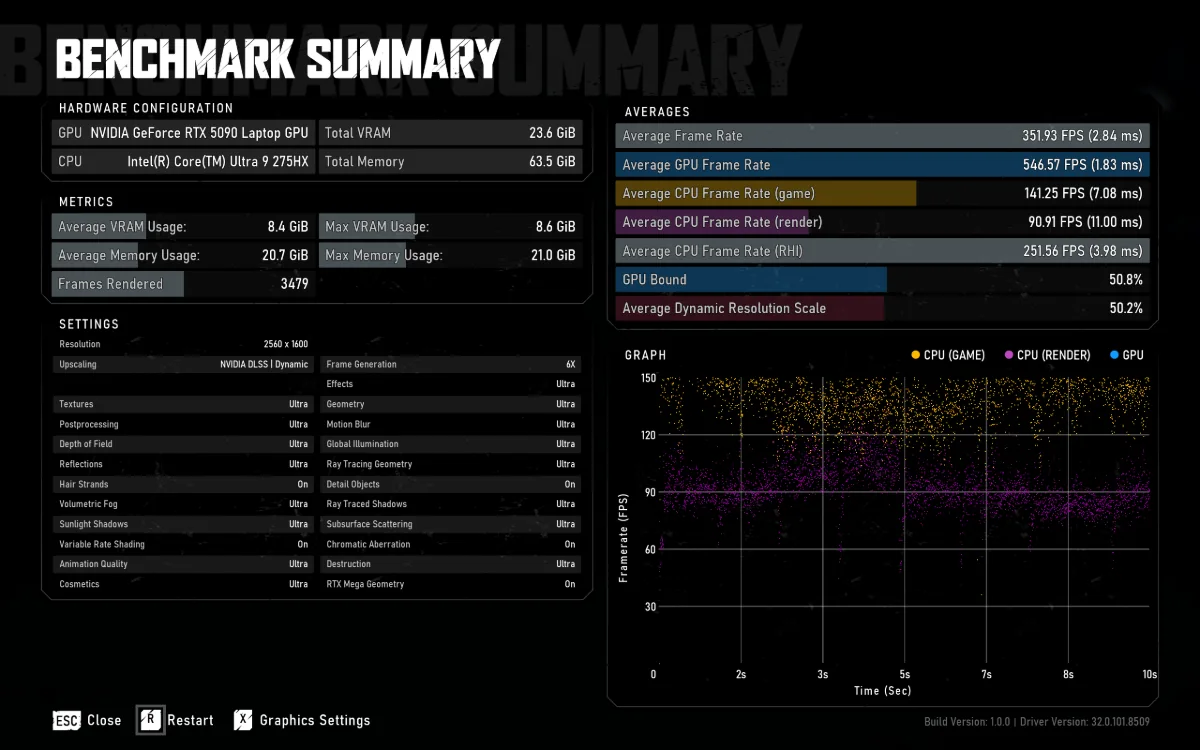
The launch benchmark reports both the settings used and CPU/GPU metrics. This example has dynamic DLSS and 6X frame generation enabled, so its displayed frame rate is not a promise for your PC.
The launch known issues include a measurement limitation: the performance overlay in Benchmark mode does not include generated frames and can report a lower-than-actual displayed frame rate. If you enable frame generation, distinguish rendered performance from the extra frames added to the presentation. Do not interpret two counters as contradictory until you know what each includes.
A benchmark is a starting point, not proof that every campaign scene or multiplayer session will behave identically. Follow it with ordinary gameplay and look for sustained frame pacing, responsive input, and stable operation. A single favorable average can hide a problem that appears only when a fight becomes busy or a session runs longer.
Change one performance condition at a time if you need to compare. If you alter resolution, preset, and reconstruction simultaneously, you may improve the result without learning which change mattered. Keep the previous combination written down so you can return to it if a new image-quality tradeoff is not worthwhile.
Launch changes matter when comparing older advice
E-Day's September 30 launch update changed several PC options from the beta. The launch settings include frame-rate caps of 30, 60, 90, 120, 144, 240, and Unlimited, with Unlimited no longer imposing a cap. Multi-frame generation is optional at launch. Those are meaningful differences from beta advice built around a temporary frame-rate limit or disabled frame generation.
The update also addressed graphics settings resetting between launches and made stability, optimization, and input-delay improvements. The October 5 patch added further stability, performance, and hardware-compatibility work. An August video can illustrate what a beta encountered, but it should not supply a launch FPS prediction or a claim that the same issue is still universal.
Shader preparation has changed as well. Advanced Shader Delivery is available for supported AMD hardware at launch, with NVIDIA support announced for later in October. On Windows 11, an installed Xbox PC app may allow the required shaders to be preinstalled even when playing outside that app. That does not mean every machine has the same startup path or that a future support date has already arrived.
Make an upgrade decision from a specific mismatch
If your PC lacks hardware ray tracing or a suitable SSD, the issue is a prerequisite. If it meets those checks but misses your preferred performance, identify which target and condition are failing. Those are different decisions and should not be solved with the same blanket recommendation to buy the newest hardware.
For example, a card in the minimum group does not become unsuitable simply because it cannot reproduce a 4K Ultra target. It may still fit a lower-resolution goal. Equally, choosing a GPU from the Ultra row does not erase the need for a suitable CPU, enough memory, and a supported installation.
Use the requirements to establish a starting tier, then use your launch-version results to judge whether that tier is comfortable. The useful outcome is a PC that can run the settings and modes you intend to play. There is no supported reason to upgrade every component solely because a beta clip or an unqualified online comment says the game is demanding.