If Act 2 Chapter 2 stays on a black screen with a spinning loading icon after its cinematic, install the available launch update and try a fresh game session first. Early-access player reports describe this failure on October 2–3, 2026; they do not establish whether it still reproduces after the October 5 patch. One player reported getting past it by replaying Act 2 Chapter 1 without skipping the cutscene. That is a community workaround to try, not a guaranteed fix.
Keep your original campaign save. The October 5 Allfather's Plaza correction addresses an objective that fails to update during gameplay, which is different from a chapter that never finishes loading. Do not assume that the shared act and chapter label means both symptoms have the same cause or repair.
Confirm that your symptom matches the loading report
The reported sequence is specific: the player reaches Act 2 Chapter 2, a cutscene finishes, the display goes black, and the loading icon keeps spinning. The player cannot begin normal gameplay. A visible character who can move around Allfather's Plaza is a different state.
Check the following before selecting a workaround:
- The act and chapter you were entering, rather than the last chapter you completed.
- Whether the cinematic played, was skipped, or failed to appear.
- Whether the screen remains black or a playable scene eventually appears.
- Whether the loading icon still moves.
- Whether you are playing solo, hosting co-op, or joining someone else's session.
An animated icon does not prove that loading is making progress. Equally, a single slow transition does not prove an indefinite hang. Record what you observe and the duration of your attempt instead of attaching an arbitrary failure threshold to everyone else's hardware.
The original report describes an attempt that remained blocked even after ten minutes. That is an individual observation, not a recommended waiting time or proof that all similar loading screens will remain stuck for that long.
Use the correct patch boundary
The October 5 update includes general stability, performance, and hardware compatibility improvements. Install it before testing an early-access workaround, and note whether your failed attempt happened before or after that installation.
Its Act 2 Chapter 2 Allfather's Plaza item concerns entering the Plaza after completing activities elsewhere in the mission, when the objective could fail to update. Another item concerns a Heavy Gear appearing without a Vulcan in the Black Raven Down side objective. Neither item explicitly confirms a fix for the black-screen loading sequence described here.
That distinction changes your next action. If you cannot load the chapter, inspect the transition and installation. If you can load and move around but the objective text never changes, use the campaign checkpoint guidance for a gameplay blockage. Do not reinstall the game solely because an already playable objective fails to advance.
There is no verified numeric build identifier in the confirmed launch information. Record the installed update status and test date rather than inventing a version number. Those details are sufficient to distinguish an October 2 report from a current attempt on your machine.
Restart the game without removing the save
Begin with one fresh session. Close the game normally if its menu responds. If the window is gone but E-Day remains running, check Task Manager for the leftover game process; the launch known issues acknowledge that the process can continue after closing.
- End only the identified leftover game process when the game has already closed.
- Restart the launcher.
- Reopen E-Day and use the same campaign slot.
- Repeat the same chapter transition once.
- Record whether the result changed.
A Windows restart is another low-risk comparison if the game remains stuck after a fresh launch. Keep the campaign slot and graphics settings the same for this attempt so that the result is interpretable.
Closing a hung game may lose progress since its last checkpoint. That is a reason to preserve the existing save and avoid unnecessary repeated forced exits. It is not a reason to delete saved progress or disable cloud synchronization.
Verify the installation once
If the fresh session fails at the same transition, use your launcher's file verification or repair feature for E-Day. Allow the scan and any required downloads to complete before reopening the game. This checks installed files without using a manual save-folder cleanup.
The original October 2 reporter had already verified files, updated NVIDIA drivers, lowered graphics settings, increased shader cache capacity, and reinstalled to another SSD without getting past the loading screen. Those unsuccessful attempts matter: the available report does not support promising that any one of them solves this chapter failure.
Verification remains a reasonable installation check, but its purpose is to rule out a detectable file problem on your PC. If it reports a clean installation and your next attempt fails identically, record the result. Repeating the scan without a new file change adds little information.
A different-drive reinstall is a much larger operation than verification. The reported reinstall did not solve this player's case, so treat it as unproven for this symptom rather than the inevitable next step.
Try the reported previous-chapter workaround
The October 3 community reply describes reloading Act 2 Chapter 1 and playing through it without skipping the cutscene. If your campaign options allow that replay while preserving your existing playthrough, you can try the same sequence. Check the slot you select before you start.
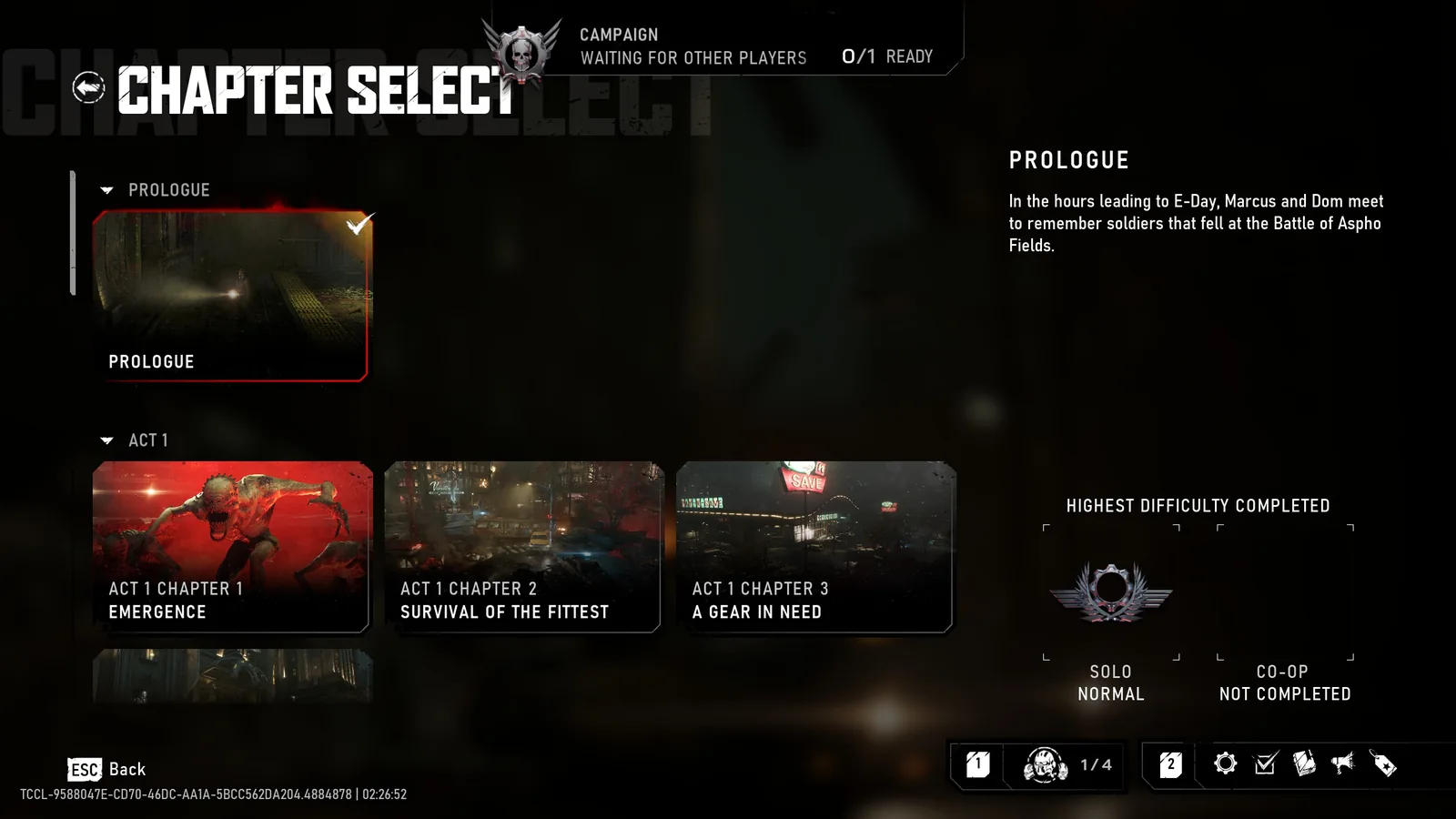
Use Chapter Select to locate an earlier chapter when trying the replay workaround. This menu example shows the Prologue and Act 1, not Act 2 Chapter 1 or the reported loading failure.
Keep the test narrow:
- Select your existing campaign state or a replay option that does not overwrite a different run.
- Enter Act 2 Chapter 1.
- Play through to the transition that leads toward Chapter 2.
- Let the cutscene play rather than skipping it.
- Check whether Chapter 2 reaches a playable scene.
The reply does not establish which cinematic or internal condition caused the successful result. Do not turn it into a claim that skipping cutscenes corrupts saves. It also does not establish a success rate across hardware, hosts, or launch updates.
If you pass the transition, confirm that normal movement and the current objective are available. Record the result and continue from that working state. If the loading screen returns, stop repeating a lengthy replay as if repetition alone were a repair.
Compare solo and co-op results carefully
If the failure occurs in a co-op session, have the group note whether everyone sees the black screen or only one participant does. Include who hosted, who joined, and whether the host reached the next scene. This comparison can identify the scope of the failure without asserting a network or save root cause.
Do not assume that another player reaching Chapter 2 means your own progression has been restored. A working host session and your personal campaign records are different things. Keep the original affected account and save slot identifiable throughout any comparison.
If you choose to test solo, use a known existing state and record that the session type changed. A solo success is useful information, but it does not prove that the co-op failure was caused by the host. Likewise, a co-op success after a restart does not prove that joining another player permanently repaired your local continuation state.
Avoid changing the host, chapter, settings, and save slot simultaneously. One controlled difference is easier to report than a result from a completely different playthrough.
Check driver warnings without chasing unrelated tweaks
If the transition is accompanied by a driver error or a crash message, keep that text. Check your installed GPU driver against the manufacturer's supported update options for your exact GPU and operating system. Complete pending Windows updates and restart when requested.
These are compatibility checks rather than confirmed chapter-specific fixes. The original report involves a capable gaming laptop and still failed after driver and settings changes, so “buy stronger hardware” is not a supported answer to this particular symptom.
Do not copy a shader cache size, launch flag, page-file number, or GPU clock from a generic troubleshooting video. The report does not establish a particular value that clears the transition. Keep your changes reversible and restore any setting that made no difference.
If the game loads other chapters normally, include that observation. It helps distinguish a repeatable chapter transition failure from an installation that cannot start any gameplay at all.
Know when checkpoint advice applies
The launch known issues advise reloading a checkpoint when an encounter or objective becomes blocked after a long uninterrupted campaign session. Use that guidance when you are inside gameplay and the menu offers an appropriate checkpoint reload.
A black screen that prevents you from entering the chapter may not offer the same controls. Do not describe “reload the checkpoint” as an action everyone can perform from an unresponsive loading state. Return through the available menu or relaunch first, then inspect the campaign options you actually have.
Checkpoint reloads can repeat recent play. They do not guarantee restoration of missing rewards or War Journal entries. If your loading problem is resolved but an objective remains stuck afterward, document that as a second symptom rather than claiming the first workaround failed.
Escalate a repeatable transition failure
If the updated game still hangs, prepare a Gears support report with platform and launcher, test date, CPU, GPU, RAM, Windows version, driver version, and campaign slot. Describe the cutscene-to-black-screen sequence and whether it reproduces from a fresh launch.
Include the outcome of one verification and the previous-chapter workaround if you tried it. State whether gameplay in other chapters works and whether co-op participants experienced the same failure. Attach a short clip of the transition if available, keeping private identifiers out of the recording.
There is no confirmed save-recovery guarantee or post-patch universal fix in the confirmed launch information. Preserve the save and stop after the controlled checks are exhausted. A precise report of the same failing transition is more useful than another reinstall or a collection of unrelated system changes.