Gears of War: E-Day supports Japanese full audio on Steam. Japanese is marked as a language with full audio support, so this is confirmed voice support rather than a subtitle-only language listing. Japanese-voiced campaign dialogue includes speech during gameplay as well as story scenes. If your goal is to play with Japanese voices, verify the audio-language options on your own installation and test both a spoken story scene and ordinary squad dialogue. Japanese menus or subtitles alone do not confirm that the selected voice track is Japanese.
The available information does not establish an identical language-selection path for every Xbox, Xbox PC app, and Steam installation. It also does not provide a verified Japanese voice-cast list or a region-by-region package table. Use the language options actually displayed for the version you own, and do not buy another regional copy solely because a language option has not yet appeared where you expected it.
Separate voices, subtitles, and interface language
Language support can refer to several different parts of a game. Interface language changes menus and labels. Subtitle language changes the written version of dialogue. Voice language changes the speech you hear. These settings can be related, but they should be checked separately when your specific goal is Japanese dubbing.
| What you want | What to inspect | What does not confirm it |
|---|---|---|
| Japanese spoken dialogue | Audio or voice-language selection, then a spoken scene | A Japanese store description |
| Japanese dialogue text | Subtitle-language selection and subtitle display | Japanese menu labels alone |
| Japanese menus | Interface-language selection or the installation's displayed UI | A Japanese voice track |
| Japanese voices with another subtitle language | Available independent voice and subtitle choices | Assuming every language combination is supported |
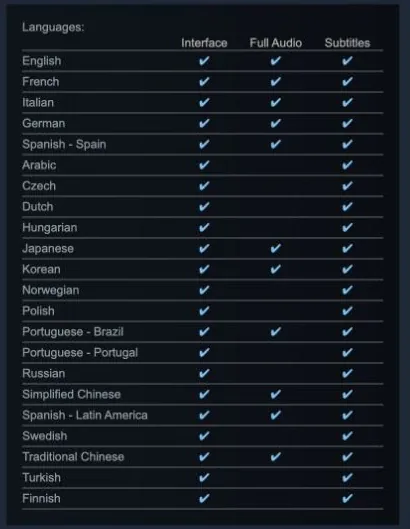
Steam lists Japanese support in all three columns: interface, full audio and subtitles. These are separate support categories.
This distinction explains a common source of confusion. A game can show Japanese text while retaining English speech, and a dubbed video can demonstrate Japanese voices without showing how to select them on your platform. Neither observation establishes a broken installation. First identify which language layer is working and which one you still want to change.
If you prefer Japanese speech but English subtitles, inspect whether your installation offers separate controls. If it does, choose each deliberately. If it does not, do not assume a hidden combination exists or edit game files to force it. The combination visible in your settings is the one you can verify before committing to a long campaign session.
Check the installation before changing anything
Confirm that you are launching the full E-Day game rather than an older beta client or a different Gears title. Several games in the series have Japanese-language videos, and their language behavior should not be transferred automatically to E-Day. The game's title in your library is the first check when a search result or recorded clip seems inconsistent with your options.
Then check that the full game is updated. A remembered menu layout from an earlier build is not a reliable map of your current installation. You do not need to change every setting before inspecting what the launch version already provides. Read the options in the game first and use the launcher only if the in-game selection does not answer the question.
Keep track of your starting configuration. Write down the current interface, subtitle, and voice selections if those are separate, along with the platform you are using. If a later change produces an unexpected language, you can return to a known combination instead of trying to remember which setting caused it.
If you share a machine or console, also confirm the profile under which you are playing. Your goal is to configure the copy and profile you actually use for the campaign. A setting seen while another person was signed in is not enough to establish how your own session is configured.
Look for the voice selection in the game
Open the game's settings and inspect the language and audio options. Look for an entry that explicitly concerns spoken audio or voice language. Do not treat a general language label as proof of what it controls; check the description or the result after applying it.
If Japanese is available as a voice choice, select it and apply the change. Follow any displayed instruction to return to the menu or restart. Some settings take effect immediately and others may require a reload, so the prompt shown by your installation is more useful than assuming a universal behavior.
After applying the setting, leave the menu and enter a scene with clearly audible dialogue. A silent exploration segment cannot confirm which voice track is selected. Use speech from a character rather than a weapon sound, music cue, or ambient effect. Those audio categories are not a language test.
If there is no explicit voice-language entry, inspect the other language options before concluding that dubbing is unavailable. The language may be associated with the installed package or a broader language selection. That possibility is a reason to inspect the controls, not a promise that changing the system language will produce a particular result.
Use the launcher only for the relevant package check
On PC, inspect the language information associated with your installed game in the launcher if the game's own options do not resolve the issue. Look for the supported language list and any language-specific download or installation option that is actually present. Do not assume the Steam and Xbox PC app interfaces use the same labels or expose the same controls.
If the launcher offers a language change and indicates a download is required, allow that operation to finish before testing again. Launching during a pending update makes it harder to determine whether the game has the selected content. Check completion in the launcher and then start the game normally.
On Xbox, first use the language choices in the game. If you inspect console language settings afterward, record the original value before changing it. A console-wide language change affects more than one title, so it should be an intentional test with a clear way back, not a routine first step for every dubbing problem.
The absence of a language-pack toggle does not itself establish that Japanese audio is missing. Equally, a Japanese-language store page does not establish that every installed version contains the same package. If neither the game nor launcher explains the audio selection, preserve the exact platform and menu details for support rather than inventing a package rule.
Verify story speech and gameplay speech separately
A complete voice check should include two kinds of dialogue. First, listen to a spoken story or cinematic scene. Second, listen to squad speech during gameplay. This matters because your goal may include callouts and conversations while fighting, not just dialogue in a movie sequence.
Use a scene you have already reached if you want to avoid spoilers. There is no need to search for a late-game ending clip merely to establish that Japanese speech exists. An early exchange with recognizable speakers is enough to compare your selected voice language with what you hear.
Turn on subtitles for the test if that helps you follow who is speaking, but keep the audio and text results separate. Japanese subtitles beneath English dialogue confirm Japanese text support in that moment. They do not confirm Japanese dubbing. Japanese speech with English text, when your version allows that combination, confirms the voice choice regardless of the subtitle language.
If the cinematic changes language but later speech does not, record the specific scene and the later type of dialogue. Do not describe the entire game as having no Japanese voices when the problem is narrower. A precise description also avoids confusing a missed setting, an unapplied change, and a particular audio inconsistency.
Distinguish the wrong language from missing dialogue
When you hear speech in the wrong language, the language configuration is the first thing to inspect. When you hear no speech at all, inspect dialogue volume and the audio output as well. Missing speech is not automatically evidence that a Japanese voice pack failed to install.
Check whether music and effects are audible. If those work while dialogue is silent, focus on the dialogue-related controls and your output arrangement. If every audio category is silent, the problem is broader than dubbing. This first comparison prevents a general sound problem from being misdiagnosed as a language-support problem.
For a headset or speaker change, confirm that the expected device is receiving the game's audio. If you changed an output mode, return to a simple known-working arrangement for the test. The useful question is whether spoken dialogue reaches that device, not whether a different clip on the same computer has sound.
Avoid changing language, volume, and output mode together. Make one change, apply it, and test the same spoken passage. If the result improves, you will know which variable mattered. If you change everything at once, a successful result may leave you unable to reproduce the configuration later.
Prepare a useful report if Japanese cannot be selected
A report should describe the version you own and what you actually observed. Include the platform, launcher if applicable, installed update status, available voice-language entries, subtitle selection, and whether dialogue plays in another language. These details make the situation concrete without guessing at a missing feature.
Also explain what happened after applying the setting. Note whether the game requested a restart, whether you completed it, and whether the result differed between a cinematic and gameplay speech. If the issue is silent dialogue, say whether music and effects still work and identify the output device used for the test.
Do not include passwords, sign-in codes, or private account details in a public screenshot. The language menu, relevant setting, and error text are the useful parts. If a support channel requires account information, provide it through that channel's appropriate private flow rather than adding it to a public clip.
There is no established universal fix that requires buying a Japanese-region copy, modifying audio archives, or reinstalling the whole game before these checks. Start with the visible selection and package state. A second purchase or a large reinstall is a poor diagnostic step when you have not yet established what is missing.
Keep the dub check spoiler-safe and specific
Once Japanese speech is working, choose subtitles for how you want to follow the campaign. The dub is an audio preference; it does not require changing the story route, skipping cutscenes, or looking up every character's later fate. You can confirm the technical setup near the beginning and then continue normally.
If you are choosing a version before purchase, Steam confirms Japanese full audio. For another storefront or platform, check its own full-audio entry rather than assuming a translated store page provides the same confirmation. The specific wording matters: a statement about Japanese language support can refer only to text. The useful answer identifies spoken campaign audio as well as the platform you intend to use.
For an installed copy, your success condition is simpler: the intended voice choice is applied, a story exchange plays in Japanese, and squad dialogue during gameplay uses the expected language. Keep those three checks together. They tell you whether the setup meets your actual goal without relying on a menu translation or a video title alone.