
Gears of War: E-Day is available on Windows through Xbox on PC. To use the Microsoft version, sign in to the Xbox app with the Microsoft account that owns the game or has an eligible Game Pass entitlement, install the complete game and current updates, and launch it online at least once before attempting to play without a connection.
Offline access is conditional rather than guaranteed for every part of the game. Windows lets you designate one PC or Windows handheld for offline play, while E-Day’s online modes still need their network services. Online campaign co-op, Horde Siege, Versus, purchases, and leaderboards should not be treated as offline features. Prepare and test the exact PC before traveling or losing internet access.
As of October 10, 2026, the Windows release is live. Early access has ended, so a standard eligible license no longer needs an early-access entitlement. This guide covers only installation through the Microsoft/Xbox route and preparation for an offline launch. Steam installation, PC specifications, graphics settings, and general crash repair belong to separate tasks.
Confirm the Microsoft PC route before downloading
The Microsoft version is listed as Xbox on PC and requires a Microsoft account. The game also requires an initial download, and future updates may require additional storage and an internet connection. That means offline preparation begins while the PC is still online; offline mode is not a substitute for downloading or updating the game.
Use this quick status table before committing time or bandwidth:
| Check | Confirmed position | Practical meaning |
|---|---|---|
| Windows availability | Released through Xbox on PC | Use the Xbox app and the Microsoft account tied to your entitlement |
| Initial installation | A download is required | Complete the download while connected to reliable internet |
| Account | A Microsoft account is required | Sign in with the account that owns or can access the game |
| Offline device limit | One Windows gaming device at a time | A PC and Windows handheld cannot both be designated for offline play simultaneously |
| Offline feature limits | Store purchases and leaderboards are unavailable | Finish purchases and other online account activity before disconnecting |
| Online modes | Online co-op and multiplayer depend on online services | Do not plan to use online campaign co-op, Horde Siege, or Versus without a connection |
| Local split-screen on PC | Not supported natively on PC | Offline play on Windows should be planned as a solo session, not local two-player play |
If E-Day does not appear in the account’s library, stop before downloading anything under another profile. Confirm which Microsoft account holds the purchase or subscription entitlement. Installing while signed into one account and later trying to launch through another can turn an account mismatch into what looks like an offline-license failure.
Install the Xbox app version on Windows
Complete the installation while the PC has a stable connection. The exact app layout can change, but the safe sequence remains the same:
- Open the Xbox app on the Windows PC you intend to use.
- Check the signed-in Microsoft account before locating the game. It should be the account associated with the Microsoft purchase or eligible Game Pass access.
- Search for the official Gears of War: E-Day product entry. Confirm the full title before selecting the installation option so that you do not confuse it with Gears of War: Reloaded, which is a separate remaster.
- Choose the intended installation drive and begin the download. Leave enough room for the initial game files and later updates; the official launch information warns that future updates can require additional storage.
- Allow the Xbox app to finish the complete download. A visible tile, shortcut, or partially downloaded entry does not establish that the game is ready for offline use.
- Check for any pending update after the initial installation. Downloads and updates require an internet connection, so resolve them before the PC is taken offline.
- Start E-Day while connected. Let the Microsoft account and game complete any first-run sign-in, agreement, or initialization steps that appear.
- Reach the game’s usable menu before closing it normally. Do not assume that installation alone has completed every first-launch requirement.
The first online launch is an important preparation step even though it does not prove future offline access. It lets you detect the wrong account, an incomplete installation, a pending update, or another authorization requirement while internet access is still available.
Avoid using a desktop shortcut as your only readiness check. A shortcut can exist before the underlying installation, account verification, and game initialization are complete. The meaningful result is that the intended account can open the installed game and reach its menu while online.
Prepare Windows before going offline
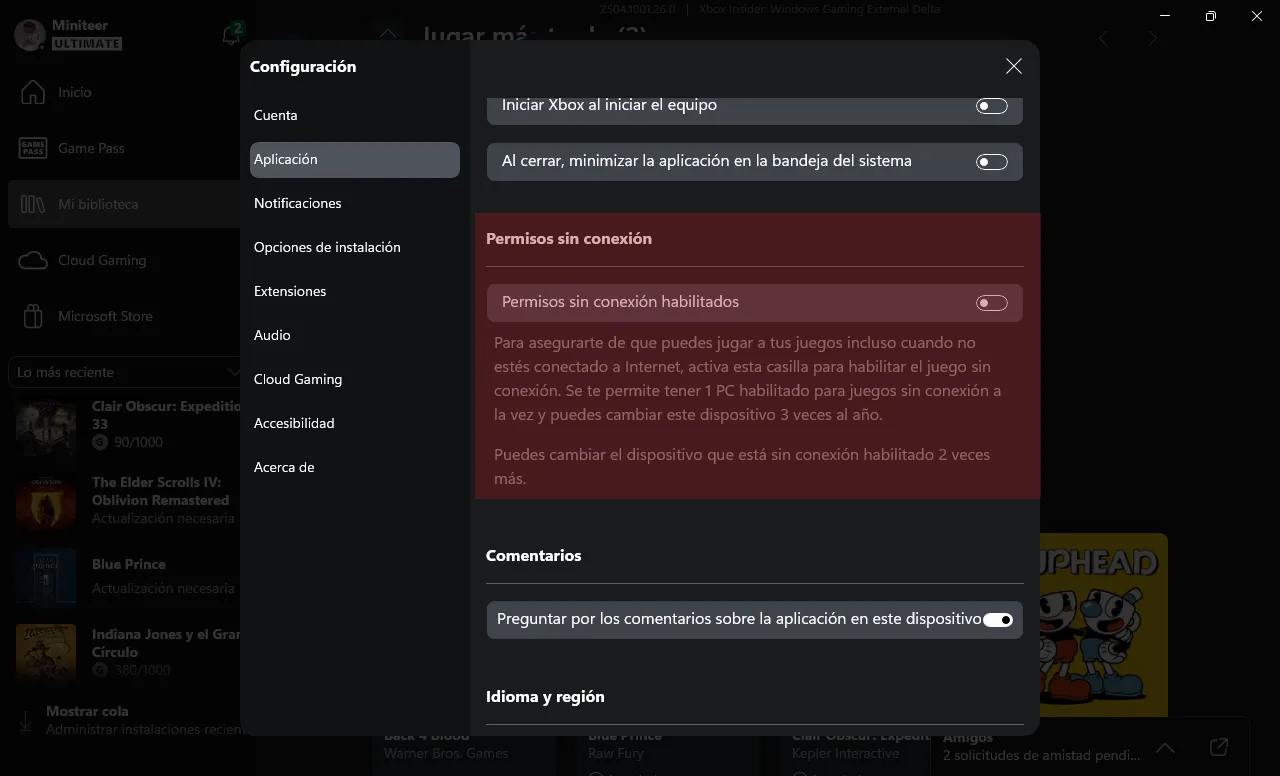
The Spanish-language example shows the toggle switched off. Enable Offline permissions on your chosen PC before disconnecting.
Xbox’s Windows offline system must be prepared in advance. Configure the PC or Windows handheld that will actually be used without internet; do not configure a spare device and assume the authorization follows your account automatically.
Only one Windows gaming device can be designated for offline play at a time. A Windows handheld counts as a Windows gaming device under this rule. If a handheld is currently designated, setting the PC as the offline device replaces that arrangement rather than creating a second offline device. Decide which machine matters for the upcoming trip or outage before changing the setting.
While still connected:
- Open the Xbox app on the intended Windows device and verify the account again.
- Select your profile picture, then open Settings > App.
- Select the Offline permissions enabled checkbox to designate this machine for offline play.
- Keep the account signed in and launch E-Day online after making the change.
- Sign in to your Microsoft account if prompted, then start playing the solo campaign before exiting normally. Complete this online game-launch preparation after any pending Windows updates have finished.
- Reopen the Xbox app once more while online and confirm that the installed game remains visible to the same account.
You can change the designated offline device up to three times per year. Choose the PC or handheld you actually need and avoid switching machines repeatedly as a troubleshooting experiment.
Do not wait until the connection is already unavailable. Xbox’s support guidance explicitly treats offline play as something that must be prepared beforehand. If you are already offline and the device was never configured, there may be no reliable way to complete account or license preparation until connectivity returns.
Changing the designated device immediately before departure also deserves a test. The one-device rule means a successful offline launch on a handheld says nothing about whether the PC is currently authorized. Test the exact hardware you will carry.
Test an offline launch before you depend on it
An online launch confirms installation and account access. A separate disconnected test confirms whether the prepared PC can actually reach the part of E-Day you plan to play. Perform this test with enough time to reconnect and correct an authorization problem.
- Save and close the game normally while online.
- Close the Xbox app rather than leaving an active online session in the background.
- Disconnect the PC from Wi-Fi and Ethernet, or otherwise disable its network connection.
- Reopen the Xbox app under the same Windows and Microsoft account context used during preparation.
- Launch Gears of War: E-Day from the installed library entry.
- Attempt to reach the solo campaign and load the intended save or begin a temporary test session.
- Play long enough to confirm that the game does not immediately request an online connection.
- Create or advance a small amount of test progress, exit normally, and reopen the game once more while still disconnected.
- Confirm that the offline progress remains available locally before treating the machine as ready.
- Reconnect afterward and give the account time to return to its normal online state before switching devices or continuing elsewhere.
This test matters because Windows offline permission and game-level offline support are separate questions. Designating a device establishes the Windows side of the preparation, but it does not prove that every game or mode can operate without its online services. E-Day confirms solo campaign support, but that feature listing alone does not prove that every license and campaign state will cold-launch offline. The disconnected test is therefore the final acceptance check.
Use a real cold launch for the test. Disconnecting only after the game is already running can demonstrate that an existing session survives a temporary outage, but it does not prove that the license and game can be started from a closed state.
Know what changes while offline
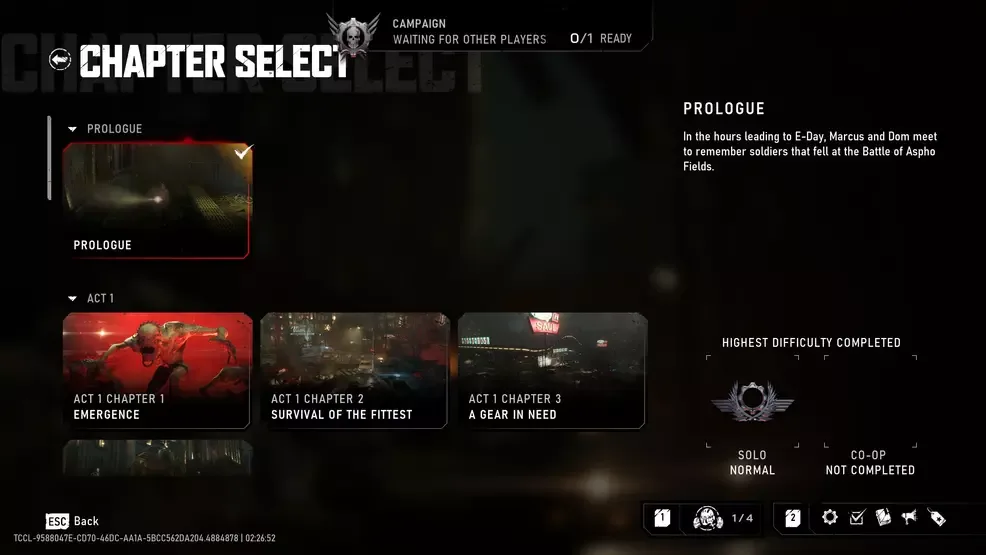
The campaign menu distinguishes solo progress from unfinished co-op content.
Plan an offline session around solo content. Online campaign co-op, Horde Siege, and Versus depend on online connectivity and should not be included in an offline plan. The Windows version also has no native two-player local split-screen, so a disconnected PC does not provide a local co-op replacement.
Xbox’s offline guidance identifies two additional limitations: purchases from the Store and leaderboards are unavailable without a connection. Buy or redeem anything needed before leaving the network, but do not assume that every newly acquired item becomes usable offline until it has appeared in the game during an online session and passed the disconnected test.
Before disconnecting, connect to the Xbox network so the PC receives the latest cloud save. Offline progress is saved locally and syncs the next time you sign in online. Before continuing on another device, reconnect the original PC and wait for its local progress to sync to the cloud. If the platform asks you to choose between conflicting save states, inspect the dates and progress rather than selecting one automatically. Offline achievements and other account services should also be checked after reconnecting rather than assumed to behave exactly like an always-connected session.
A successful offline campaign launch does not imply offline access to account-driven services. Use this distinction:
- Installed content is the game data already present on the PC.
- Device authorization is the Windows offline designation associated with the account.
- Game support determines whether a particular mode can run without online services.
- Online services cover multiplayer sessions, leaderboards, purchases, and other connected functions.
All four can behave differently. A complete download can still fail an offline authorization check, while a properly authorized device can still be unable to open an online-only mode.
Separate license checks from general PC problems
If the game works online but fails only after disconnecting, focus on the account, designated device, completed first launch, and offline mode selection. That pattern is different from a game that also fails while online. General startup crashes, performance problems, graphics configuration, and unrelated Windows faults are outside this installation and offline-access workflow.
Use the failure point to choose the next check:
| Observed result | Check next |
|---|---|
| The game is absent from the Xbox app library | Verify that the app is signed into the Microsoft account with the purchase or eligible access |
| Installation is incomplete or an update is queued | Reconnect and finish every required download before repeating the offline test |
| The game launches online but not offline | Confirm that this exact PC, rather than another PC or handheld, is the designated offline Windows device |
| The game reaches its menu offline but a multiplayer mode fails | Return to solo content; online co-op, Horde Siege, and Versus are not offline substitutes |
| Purchases or leaderboards disappear | Reconnect; those functions are unavailable offline by design |
| A shortcut exists but the game requests more files | Reconnect and complete the installation or update through the Xbox app |
| The game fails both online and offline | Treat it as a broader PC launch problem rather than assuming offline authorization is the cause |
Do not delete local or cloud saves as a generic response to an offline launch failure. A missing entitlement, unfinished update, or wrong designated device should be checked without risking campaign progress. Likewise, repeatedly changing accounts or offline devices can make the test harder to interpret. Change one condition at a time, then repeat the closed-state offline launch.
If offline launch remains unavailable after the account, installation, first online launch, and designated device have all been verified, the defensible conclusion is that the current license or game state cannot be relied on offline. Reconnect when possible instead of promising that a hidden setting will force access.
Final offline-readiness checklist
Before leaving a reliable connection, confirm every item below on the same PC:
- The Xbox app is signed into the Microsoft account that can access Gears of War: E-Day.
- The complete game and all currently required updates are installed.
- The game has launched online and reached a usable menu.
- This PC is the one designated for Windows offline play.
- No Windows handheld or second PC is being mistaken for the active offline device.
- A closed-state launch succeeds after the network is disconnected.
- The intended solo campaign state can be opened without an immediate connection request.
- Offline progress remains present after closing and reopening the game.
- You are not relying on online co-op, Horde Siege, Versus, purchases, or leaderboards.
- Important progress has been checked before switching to another device.
If any one of the installation, authorization, or disconnected-launch checks fails, the PC is not yet proven ready for offline use. Reconnect and resolve that specific stage before depending on Gears of War: E-Day away from the internet.