
Gears of War: E-Day is available on Xbox Series X and S. Before trying to play offline, complete the console’s first-time setup online, add your Microsoft account profile, download the full game, and install any available updates. If you own the game digitally, designate the console as your Home Xbox before disconnecting. Xbox confirms that digital games can be played offline on a Home Xbox, but downloads, updates, and online multiplayer still require a connection.
The console version supports solo campaign play and two-player local split-screen. Four-player campaign co-op is an online option, not a four-player local mode. Online campaign co-op and other online multiplayer features also require a subscription that includes console online multiplayer. This guide focuses on installation, local access, and offline preparation rather than choosing or purchasing a subscription.
Confirm Your Xbox Setup Before Downloading
Use an Xbox Series X or Xbox Series S. The confirmed console release is for the Series X|S generation, so do not assume that an Xbox One can install or run the game merely because general Xbox support pages sometimes retain Xbox One wording in their URLs or article titles.
Make sure you are looking at Gears of War: E-Day, not a different Gears release. E-Day is a newly built prequel set fourteen years before the original Gears of War. It follows Marcus Fenix and Dominic Santiago during the initial emergence in Kalona. It is not a remake of Gears 1, and Gears of War: Reloaded is a separate remaster. Checking the full title before starting a large download prevents you from installing the wrong game.
The following limits matter during setup:
| Setup item | Confirmed requirement or limit |
|---|---|
| Supported Xbox consoles | Xbox Series X and Xbox Series S |
| Account | A Microsoft account is required |
| Initial installation | The game requires an initial download |
| Connection | Downloads and updates require broadband internet access |
| Storage | The download is significant, and future updates may require additional space |
| Local campaign | Solo play and two-player split-screen are supported on console |
| Online campaign | Up to four players can play campaign co-op online |
| Digital offline access | Supported through the console designated as your Home Xbox |
| Online multiplayer | Requires a subscription that includes console online multiplayer |
No verified Xbox download size is provided here. Avoid planning around an unofficial number: check the current size shown by your own console and leave additional free storage for updates. The official game information warns that future updates may need more space, so having exactly enough room for the initial package can still cause a later update to stop.
Install Gears of War E-Day on Xbox Series X or S
For an owned digital game, Xbox’s documented library path is My games & apps > See all > Full library > All owned games. Select Gears of War: E-Day and choose Install all. For a Series X|S optimized title, use the console’s internal storage or a Storage Expansion Card. Confirm the correct product, completed initial download, and current update before preparing offline access.
- Connect the console to the Xbox service. First-time Xbox setup cannot be completed without an internet connection. Let the console update and add the Microsoft account profile that has access to the game.
- Locate the exact E-Day product. Open My games & apps > See all > Full library > All owned games, select E-Day and choose Install all. Confirm the full name; do not substitute Gears of War: Reloaded or another earlier Gears title.
- Confirm that your account has access. Use the account that owns the digital game or otherwise has a valid entitlement. This step checks access only; it does not require changing editions or buying a subscription through this guide.
- Start the initial download. Keep the console connected while the game package downloads. The official product information describes the download as significant, so allow enough time and available storage rather than treating the installation as a small add-on.
- Allow the current update to finish. A base package on storage is not the same as a fully prepared installation. Downloads and updates both require internet access, and later updates can increase the storage requirement.
- Confirm that installation is complete. Select Check install progress to open Manage Queue. If it still reports downloading, updating, paused, or waiting for space, resolve that state before preparing offline access. To move E-Day ahead of another queued download, highlight it, press the controller’s Menu button, and choose Install now.
- Launch the game while still connected. This is a practical validation step: it confirms that the installed product, account access, and current game package work together before you remove the network connection. It is not a claim that solo play permanently requires an online connection.
If the installation pauses, first inspect the status shown by the console. Restore the network connection if the download was interrupted and free enough storage if the console reports insufficient space. Do not guess at a required gigabyte figure that differs from the current value shown on the system.
A successful pre-install from before release is not, by itself, proof that the launch build and subsequent updates are installed. E-Day released on October 6, 2026, after pre-install began on September 29. If an older pre-install remains on the console, allow Xbox to finish converting or updating it to the playable release before testing offline access.
Set Up Two-Player Local Split-Screen
Two-player split-screen is available on console. This is the local option for two people sharing one Xbox and one display; it is different from the game’s four-player online campaign co-op.
Prepare local play while the console is still connected and the installation is known to work:
- Connect both controllers to the Xbox Series X and S and verify that each controller is responding at the system level.
- Start E-Day with the primary player’s profile and enter the campaign flow that offers local split-screen.
- Use the current on-screen prompt to add the second local player. Two-player console split-screen is confirmed, but do not assume an undocumented button sequence or identical join prompts across every menu.
- Verify that both players appear before starting or resuming the campaign.
- If offline play is the goal, complete this local test before disconnecting so that controller, profile, and installation problems are not confused with an offline-access problem.
Do not expect four local players. The confirmed local mode is two-player split-screen. The separate four-player figure applies to online campaign co-op. Horde Siege and Versus are also multiplayer experiences, but their online setup is outside the local split-screen task.
If the second controller does not join, check whether the controller is connected to the console and whether you are at a screen that offers a second local player. Restarting from a supported campaign entry point is more relevant than searching for a four-player local lobby that the confirmed feature list does not promise. Follow the current game prompts for the second player’s profile; do not assume guest-account behavior or a button shortcut that is not documented for E-Day.
Prepare Your Home Xbox for Offline Access
A digital copy is best prepared for offline use on the console designated as your Home Xbox. Xbox states that a Home Xbox lets you play your digital games offline and lets friends or family on that console access your games and content even when you are not signed in.
Complete these steps before intentionally disconnecting:
- Finish the Xbox console’s first-time setup online. The system cannot complete its initial setup without an internet connection.
- Let the console update and add your profile.
- Finish the E-Day initial download and any current update.
- Press the controller’s Xbox button and go to Profile & system > Settings > General > Personalization > My home Xbox. Select Make this my home Xbox for the Series X|S you plan to use offline.
- Launch the installed game while connected to verify that the account and installation are recognized.
- Prepare the intended solo or two-player local campaign session.
- Only then place the console in its offline state or disconnect it for the planned offline session.
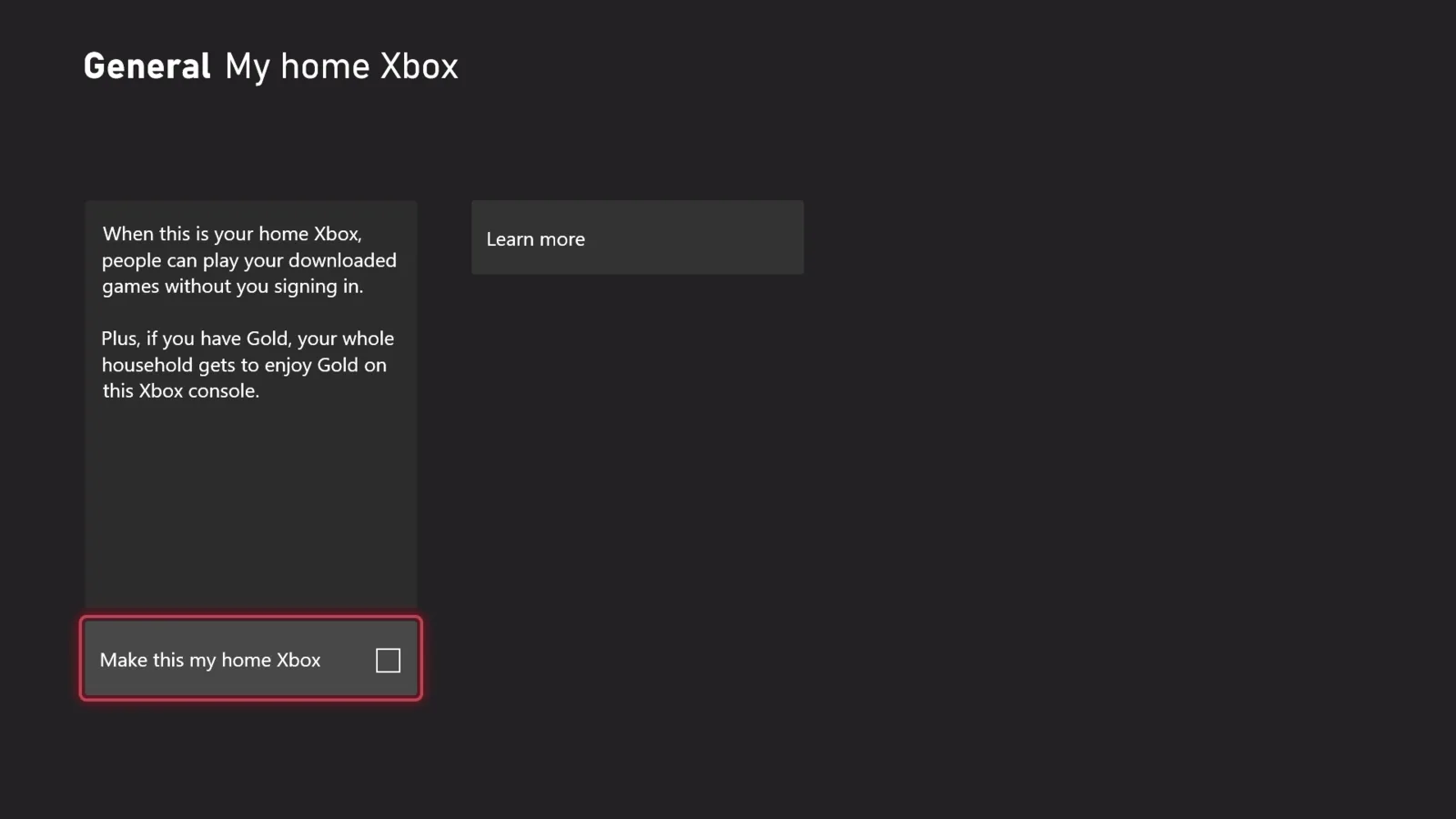
The Home Xbox setting in an earlier console interface. Follow the current menu path above; the older Gold wording is no longer the current subscription name.
You can have only one Home Xbox at a time. If you sign in on several consoles, Xbox recommends choosing the console you use most frequently. This matters because setting a different machine as Home Xbox can remove the digital offline-access benefit from the previous one.
After changing Home Xbox, download or launch the game on the newly designated console while online so its digital license is registered there. Installing a digital game on the Home Xbox retrieves its Xbox-network license; that offline license remains tied to the console until the Home Xbox designation changes.
Home Xbox selection also has operational limits. You can switch the designation up to five times during any one-year period, and Xbox customer support cannot provide additional switches. Do not repeatedly change the setting as a general troubleshooting experiment. Confirm which physical console needs offline access and reserve changes for real moves between systems.
If you upgraded from Xbox One to Xbox Series X and S, designate the new console as your Home Xbox. The older console’s status does not automatically establish the new Series X|S as the offline home system. You must also assign the designation again after resetting a console and removing everything. Xbox says it does not otherwise change your Home Xbox automatically, so an unexpected offline entitlement problem is a reason to verify the setting rather than assume that Xbox silently moved it.
Put the Xbox Console Offline at the Right Time
Xbox provides an offline console setting for times when you deliberately want the system not to connect to any network. Do not use that setting merely because your home network, internet provider, or the Xbox service is experiencing a temporary outage. Xbox recommends leaving the console set to online during an outage so it can reconnect automatically when service returns.
The distinction is important:
| Situation | Appropriate preparation |
|---|---|
| First console setup | Stay online; setup cannot finish without a connection |
| Installing or updating E-Day | Stay online until the download and update complete |
| Planned disconnected use | Prepare the installation and Home Xbox designation first, then use the offline setting |
| Temporary network or service outage | Leave the console set to online so it can reconnect automatically |
| Digital game on the Home Xbox | Xbox supports playing digital games offline on that console |
| Online campaign co-op or other online multiplayer | Reconnect; these are not offline features |
The Home Xbox rule establishes console-level digital offline access. It should not be stretched into a promise that every E-Day screen, service, or multiplayer mode functions without a network. Solo campaign and two-player local split-screen are confirmed game modes, while online campaign co-op and other online multiplayer require connectivity. Test the precise local session you intend to use before leaving the network if offline availability is important for a trip, event, or scheduled play session.
Avoid treating cross-platform access as an offline solution. E-Day is also available through Xbox on PC and Steam, but cross-platform networking does not create cross-store ownership. An Xbox console entitlement should not be assumed to produce a Steam copy, and a Steam purchase should not be assumed to install the Xbox console version.
Let Other Local Users Access the Digital Game
On a Home Xbox, friends and family can access the owner’s games and content when the owner is not signed in. That makes the Home Xbox designation relevant when E-Day will be played locally by another household profile.
Set up the access on the physical Series X|S that those local users will actually use. Because only one console can be the Home Xbox at a time, the benefit cannot be assumed to apply simultaneously to every Xbox carrying the owner’s profile. If the household replaces or resets that console, verify the Home Xbox designation again before depending on offline access.
Home Xbox sharing also has content exceptions: in-game currency, certain preorder bonuses and some one-time special-edition content can remain account-specific. Do not promise another household profile every Premium Edition item merely because it can launch the base game.
This local sharing rule does not change the game’s player limits. Campaign split-screen remains a two-player console feature, while four-player campaign co-op is online. It also does not remove the connection and subscription requirements attached to online multiplayer.
Fix Common Xbox Installation and Offline Problems
The game is installed but will not start offline
Reconnect the console and verify four things in order: the correct E-Day product is installed, its download and update are complete, the account has access, and this console is still designated as the Home Xbox. If the console was reset with everything removed, assign the Home Xbox setting again. If another Xbox was recently made the home system, remember that only one console can hold the designation.
Launch the game successfully while connected, then repeat the planned offline test. Do not delete cloud saves or repeatedly switch Home Xbox systems as a generic fix; neither action is established as necessary for this problem, and Home Xbox changes are limited.
The download or update will not complete
Keep the console online, inspect its current queue or installation status, and respond to the specific state it reports. A significant download needs a broadband connection, while future updates may require additional storage. Free space based on the current console requirement instead of an unofficial size quoted elsewhere.
If the console is deliberately set offline, return it online before expecting downloads or updates. Offline access is for prepared content; it does not make update files available without a network.
The primary player works but the second local player cannot join
Confirm that you are using the Xbox console version, both controllers are connected, and the campaign screen currently offers local split-screen. Do not look for a four-player local option: the supported console arrangement is two-player split-screen. The exact join prompt can vary with the current game interface, so use the instruction visible on screen.
Solo play works but online co-op does not
Treat this as a separate online-access issue rather than proof that the installation failed. Four-player campaign co-op is online, and online console multiplayer requires a subscription that includes online multiplayer. A Home Xbox designation helps with local digital access; it does not turn an online mode into an offline one.
The wrong Gears title was downloaded
Return to the product listing or library entry and check the full name. E-Day is the prequel about Marcus and Dom during the initial emergence. Reloaded is a separate remaster. Similar franchise branding is not evidence that the two products share one installation.
Final Offline Readiness Checklist
Before disconnecting the Xbox Series X and S, confirm every item below:
- The console completed its first-time online setup and system update.
- Your Microsoft account profile is present.
- The installed product is Gears of War: E-Day, not Reloaded or another Gears game.
- The initial game download has finished.
- The current update has finished and sufficient storage remains for later updates.
- The game launches successfully while connected.
- This physical console is designated as your Home Xbox if you rely on digital offline access.
- Both controllers work and the second player can join if you plan to use split-screen.
- You understand that local split-screen supports two players, while four-player campaign co-op is online.
- You leave the console set to online during an unplanned outage so it can reconnect automatically.
Once those checks pass, the console is prepared for the strongest supported offline setup: an installed digital game on its Home Xbox, with solo and two-player local campaign options prepared in advance and online-only features kept outside the offline plan.