
You can activate an Xbox copy of Gears of War: E-Day Premium Edition from a PC if you have a valid Microsoft or Xbox digital code. Sign in with the Microsoft account that you intend to use on your Xbox Series X and S console, then redeem the 25-character code through the Xbox redemption website, the Xbox app for PC, or Microsoft Store on Windows.
The account choice is the critical part. Once an Xbox code has been redeemed, Microsoft states that it cannot be transferred to another Microsoft account. Confirm the signed-in email address and Xbox profile before you submit the code.
If you bought the digital Premium Edition directly from the Microsoft or Xbox store while signed in, you may not have a separate code to activate. The purchase is associated with that Microsoft account. Use the same account on your PC and Xbox console to access the purchase. Xbox Play Anywhere covers the Microsoft/Xbox version across Xbox Series X and S and Windows PC as a single purchase; it does not convert a Steam purchase into Xbox ownership.
Confirm What You Bought Before Redeeming
Gears of War: E-Day Premium Edition is sold as a digital edition. Before entering anything, identify whether you received a game code, made a direct account purchase, or bought a product tied to another store.
| What you have | Correct action from a PC | Expected Xbox result |
|---|---|---|
| A 25-character Microsoft or Xbox game code | Redeem it while signed in to the intended Microsoft account | The eligible Xbox game entitlement is attached to that account |
| A direct digital Microsoft or Xbox purchase | Do not search for a separate activation code; use the purchasing account | Sign in with the same account on Xbox Series X and S or Windows PC |
| A Microsoft or Xbox gift card | Redeem the card to add its value, then complete the game purchase separately | A gift card alone does not activate the game |
| A Steam purchase or Steam token | Use Steam for activation and installation | It does not establish Microsoft Store or Xbox console ownership |
| An Xbox physical disc | Use the disc on the supported Xbox console | The disc itself cannot be activated through a PC code field |
| A retail package containing a separate Xbox digital token | Redeem only the supplied digital token through a Microsoft or Xbox method | The token is assigned to the signed-in Microsoft account |
Do not enter an Xbox game code in the Windows Activation settings. That screen is for Windows product keys, not Xbox games. Use one of the three supported redemption routes below.
Check the Account Before Entering the Code
Complete these checks before exposing or submitting the code:
- Sign out of any Microsoft accounts that should not own the game.
- Sign in with the Microsoft account used by the Xbox profile that will play the game.
- Check the displayed email address and profile rather than relying on a saved browser session.
- Confirm that the code is a Microsoft or Xbox code, not a Steam token or a retailer order number.
- Keep the retailer receipt or delivery email until activation and installation are confirmed.
- Enter the code only on an official Microsoft or Xbox redemption screen.
This matters most on a shared PC. A browser, Microsoft Store, and the Xbox app can each retain a different account session. Do not assume that signing into one automatically proves that the other two are using the same account.
Redeem Through the Xbox Website
The browser route is the shortest option when you already have the code and do not need to open a Windows app.
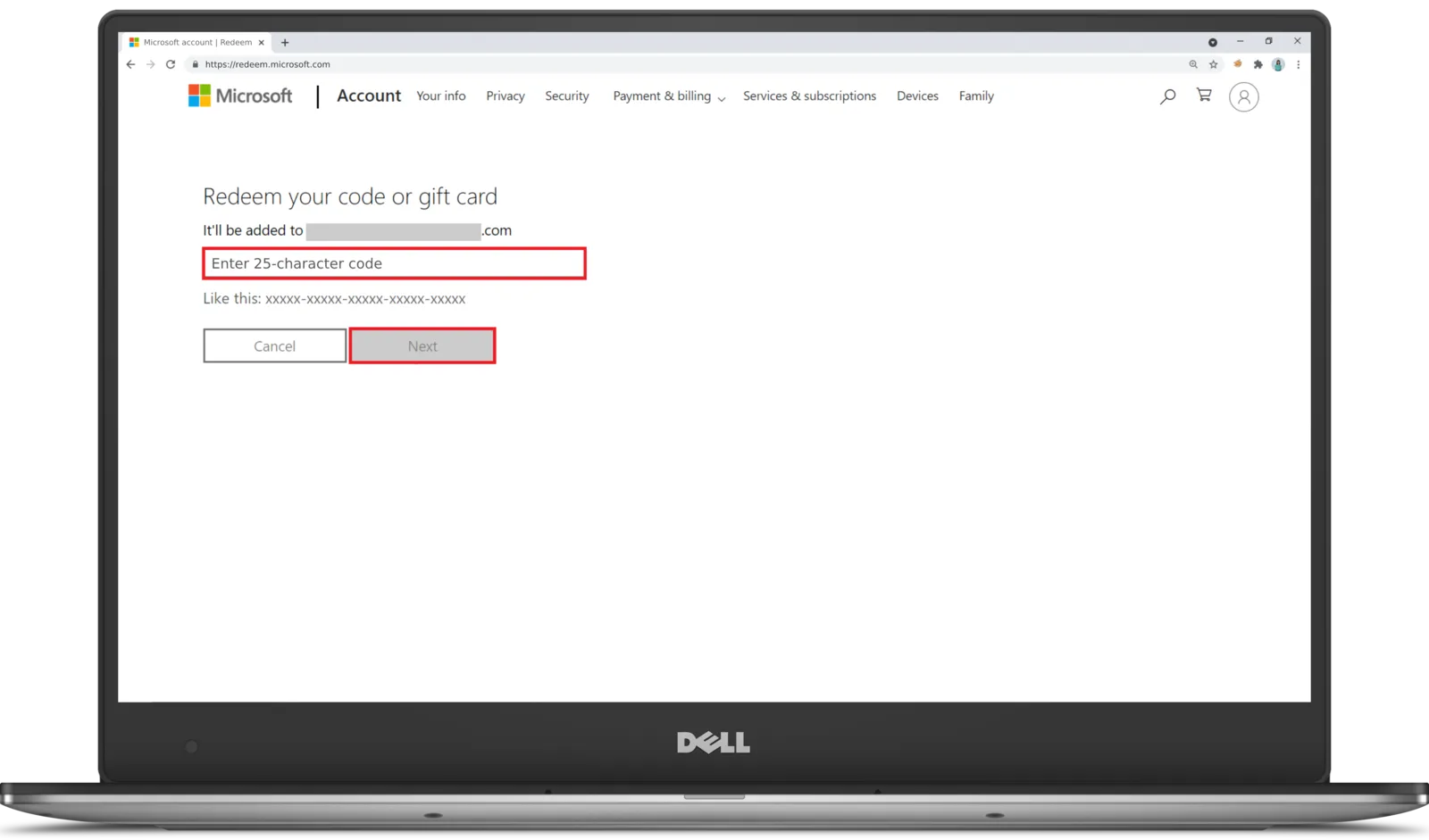
Shows the browser-based Microsoft account redemption form.
- Open the official Xbox or Microsoft code-redemption page on your PC.
- Sign in with the Microsoft account that should own Gears of War: E-Day.
- Recheck the account shown on the redemption page. Stop if it is not the account used on your Xbox console.
- Enter or paste the 25-character code.
- Review the product and account information shown before confirmation.
- Confirm the redemption only when the displayed product and account are correct.
- Keep the confirmation page available until you have verified the entitlement.
Do not treat a successful sign-in as proof that the code has been redeemed. Continue until Microsoft displays a completed redemption result. If the page identifies a different product, cancel rather than hoping that the title will change after submission.
Redeem in the Xbox App on PC
The Xbox app provides a second supported route on Windows. It is useful when you already use the app with the Microsoft account connected to your Xbox profile.
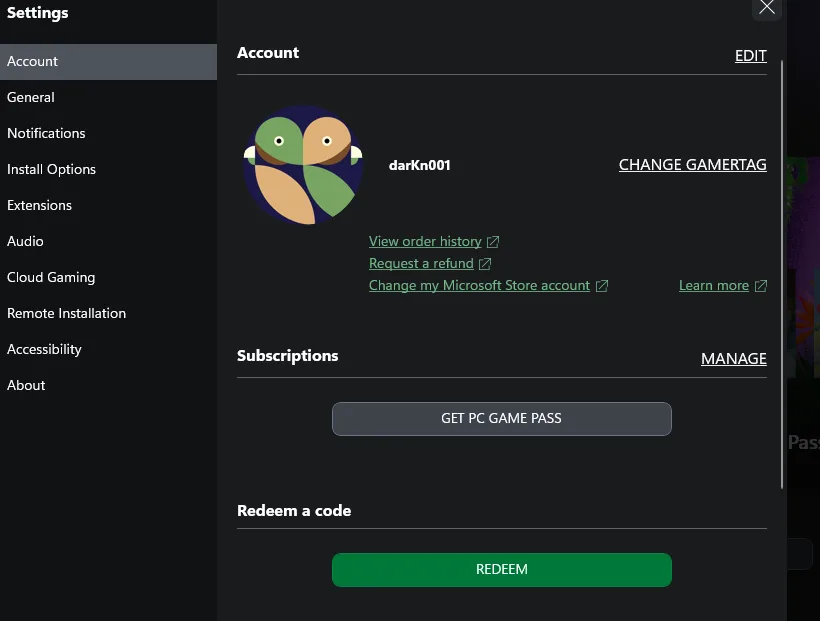
Shows where code redemption is located in the Windows Xbox app.
- Open the Windows Start menu and search for Xbox.
- Launch the Xbox app.
- Select your gamerpic in the upper-left corner.
- Open Settings.
- Find Redeem a code and select Redeem.
- Enter the 25-character Xbox code.
- Select Next, review the information presented, and follow the confirmation prompts.
Check the gamerpic and account before entering the code, especially if another person has recently used the PC. If the app shows the wrong profile, change accounts before redemption. Closing the prompt after entering the code but before completing the confirmation does not establish ownership.
The Xbox mobile app cannot redeem a code. If you are working from a PC, use the desktop Xbox app, Microsoft Store, or the official browser redemption page instead.
Redeem in Microsoft Store on Windows
Microsoft Store can redeem the same type of Xbox download code from a Windows PC. This route is separate from Windows system activation.
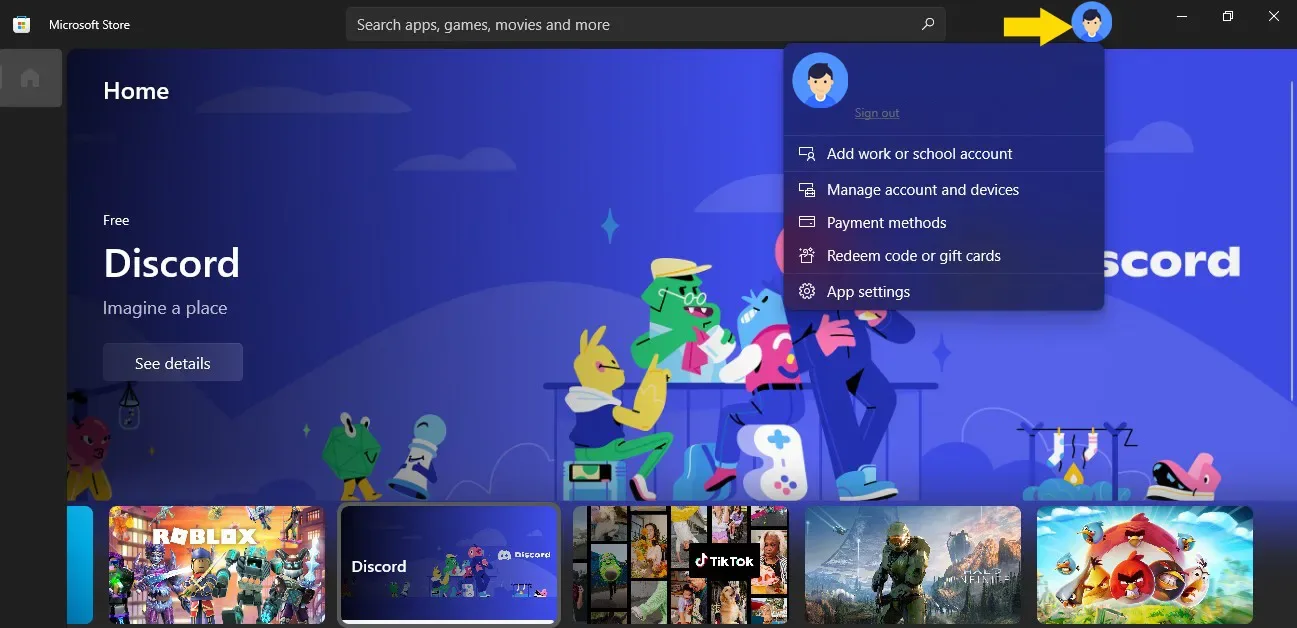
Shows the Microsoft Store Windows account menu and redemption command.
- Open the Windows Start menu and search for store.
- Select Microsoft Store from the results.
- Select the account control in the upper-right corner.
- Verify that Microsoft Store is signed in with the account that should own the game.
- Select Redeem code or gift cards.
- Enter the 25-character code and select Next.
- Review the product and account, then follow the remaining prompts to confirm.
Microsoft Store may be signed in with a different account from the Windows user account or the Xbox app. The Microsoft Store account shown during redemption is the one that matters. If it is wrong, switch accounts before you submit the code.
Verify Activation After Redemption
A completed redemption attaches the code to the Microsoft account used during the process. Verify that result before discarding the receipt or code card.
- Check the confirmation screen for a successful result and the expected product.
- Review the Microsoft account order history or redeemed-code history while signed in with the same account.
- On the Xbox Series X and S console, sign in with that Microsoft account.
- Locate the game for installation on the eligible console or PC as applicable.
- If the title does not appear immediately, first confirm that the console, Xbox app, Microsoft Store, and order history all refer to the same account.
Gears of War: E-Day launched worldwide on October 6, 2026. The Premium Edition early-access period began on October 1 and has ended, so activation now grants current access rather than a separate early-access window.
Xbox Play Anywhere is relevant only to the Microsoft/Xbox purchase. It allows the eligible single purchase to be used across Xbox Series X and S and Xbox on PC under the same Microsoft account. Cross-platform networking and cross-store ownership are different things: owning a Steam copy does not, by itself, add the Xbox version to your Microsoft account.
Fix Common Activation Problems
The code was redeemed to the wrong account
Microsoft warns that a redeemed code cannot be transferred. Do not attempt repeated redemptions on other accounts. Check the order or redemption history of the account used at the time, then use official Xbox support if account ownership remains unclear.
Prevention is more reliable than recovery. Verify the email address and profile immediately before confirming any unused code, even when the browser or app appeared to sign you in automatically.
No code was included with the purchase
A direct digital Microsoft or Xbox purchase may be granted to the purchasing account without a separate code. Check that account and its order history instead of looking for a token that was never issued.
For a retailer purchase, check the delivery email, printed receipt, package insert, and the retailer account used for the order. Official launch information notes that retailer codes can be delivered by email or printed receipt depending on the retailer and region. If the retailer supplied the wrong product or code, contact that retailer.
Do not confuse an order number, receipt number, serial number, or Steam key with a 25-character Xbox code. Only the proper Microsoft or Xbox token belongs in the Xbox redemption flow.
The code is for Steam rather than Xbox
Steam and Microsoft/Xbox are separate purchase paths for Gears of War: E-Day. A Steam token must be activated through Steam. It will not create Xbox console ownership, even though the game supports cross-platform features.
If your goal is to play the Xbox version, confirm that the retailer listing specifically identifies the product as an Xbox or Microsoft code before redemption. Do not submit an unfamiliar token merely to test where it works.
The code is rejected or identifies another product
Stop before confirming if the redemption screen identifies an unexpected item. Recheck every character and distinguish letters from similar-looking numbers. If the code remains invalid, already redeemed, or tied to the wrong product, retain the purchase evidence and contact the retailer or official Xbox support.
Do not buy a replacement until you know whether the original purchase was a direct account entitlement, a delayed retailer delivery, a Steam product, or an Xbox code. Those cases require different resolutions.
The game does not appear on Xbox after successful redemption
Start with account matching. Compare the account shown in redemption history with the account signed in on the console. Also check whether the product was an Xbox/Microsoft edition rather than a Steam purchase or a gift card balance.
A gift card redemption is successful when value is added to the Microsoft account, but that does not mean the game has been purchased. You must use the balance to complete the appropriate store purchase. Likewise, a physical disc remains a disc-based product; entering unrelated package information on a PC does not turn it into a digital console license.
The Premium Edition was purchased digitally without a token
Use the Microsoft account that completed the purchase. The Microsoft/Xbox version supports a single Xbox Play Anywhere purchase across Xbox Series X and S and Windows PC, so there is no need to buy a second copy merely because activation began on a PC.
If another account made the purchase, do not expect the entitlement to move simply because both accounts are present on the same Windows device. First establish which account owns the transaction by checking its order history.
Final Activation Checklist
Before considering the activation complete, confirm all of the following:
- The product is the Microsoft/Xbox version of Gears of War: E-Day Premium Edition, not the Steam version.
- The code, if one was supplied, is the 25-character Microsoft or Xbox token.
- Redemption was completed through the Xbox website, Xbox app for PC, or Microsoft Store.
- The Microsoft account used for redemption is the account intended for the Xbox console.
- The confirmation identified the expected product before submission.
- The completed redemption or direct purchase appears in that account’s history.
- The same account is signed in on Xbox Series X and S or the Windows PC where the game will be installed.
If every item matches, no separate console-side code entry is required. Sign in with the owning Microsoft account and install the eligible Xbox version on the supported device.